


Immigration Rights and Resources for the Campus Community

Exercising Your Rights to Free Speech

background 0background 1background 2background 3

Breadcrumb

ArcGIS Pro - Home Use Instructions

ArcGIS Pro

Installation

1. Extract the file ArcGIS-Pro.zip

2. Run ArcGIS_Pro_25_172639.exe to install ArcGIS Desktop Advanced on your personally-owned device.
Image
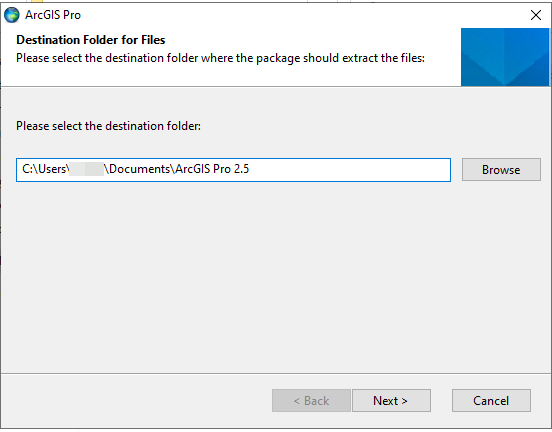
Please select the destination folder where the package should extract the files: Please select the destination folder: C:\Users\abc123\Documents\ArcGIS Pro 2.5 Browse Next Cancel
Image
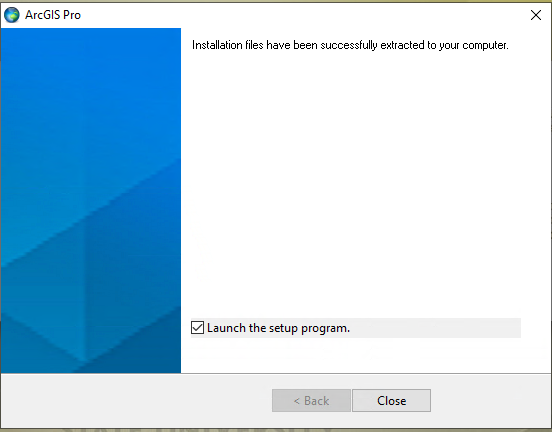
Installation files have been successfully extracted to your computer. Checkbox Launch the setup program.

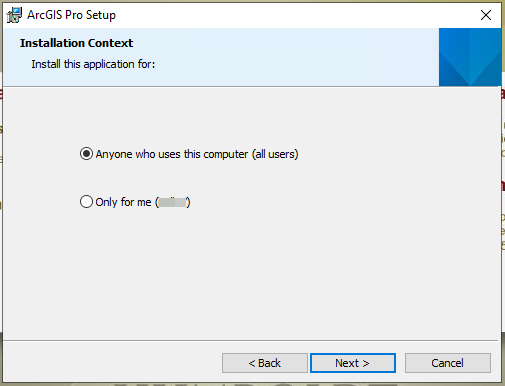
3. If you have administrator rights, select anyone who uses this computer (all users) and click next. If not, select only for me (currently logged in username) and click next.
Image
Installation Context Install this application for: Radio Button Anyone who uses this computer (all users) Radio Button Only for me (abc123) Back Next Cancel

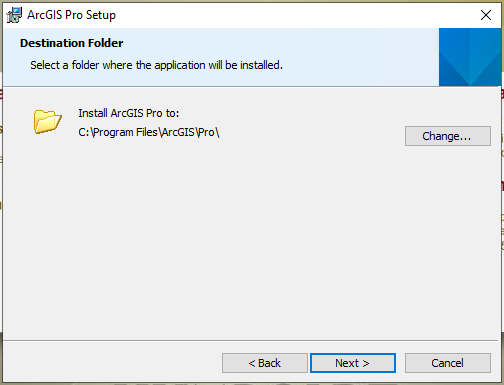
4. Leave the destination folder as the default and click next.
Image
Destination Folder Select a folder where the application will be installed. Install ArcGIS Pro to: C:\Program Files\ArcGIS\Pro\ Change... Back Next Cancel

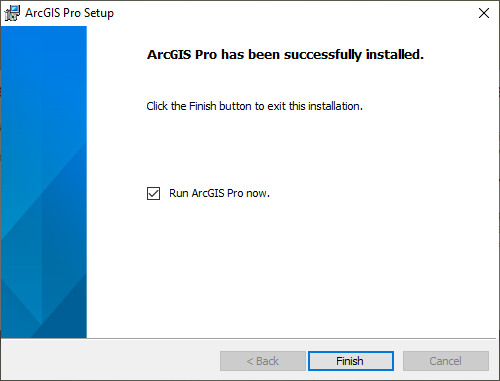
5. Leave the checkbox checked and click finish if you want to run ArcGIS Pro right away or uncheck the box, click finish, and scroll down to the section for patching your copy of ArcGIS Pro.
Image
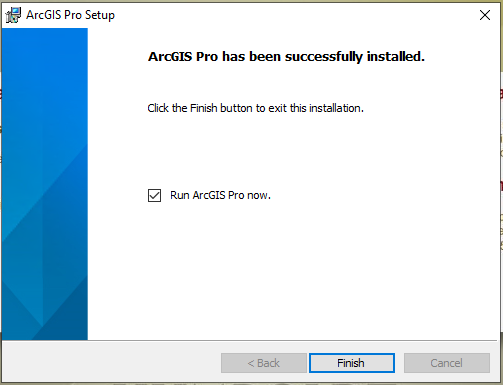
ArcGIS Pro has been successfully installed. Click the Finish button to exit this installation. Checkbox Run ArcGIS Pro now. Finish

Licensing

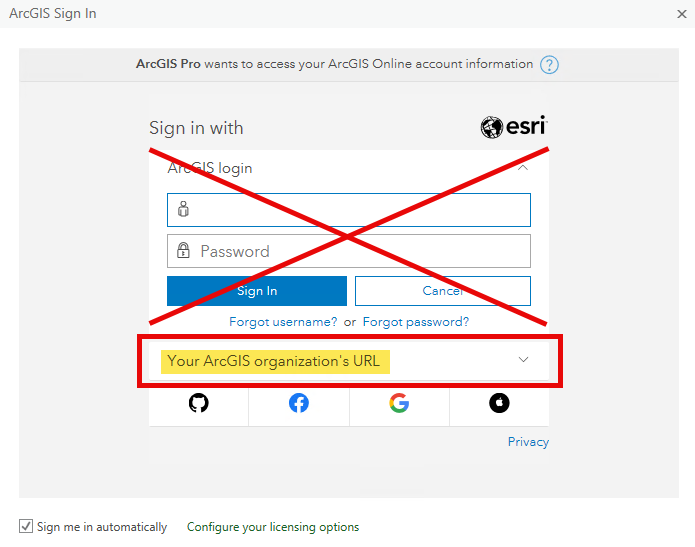
Image
ARCGIS
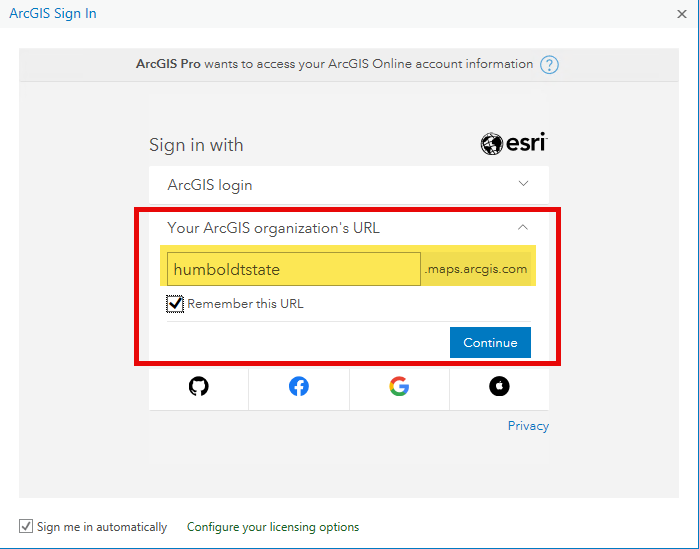
Image
ARCGIS
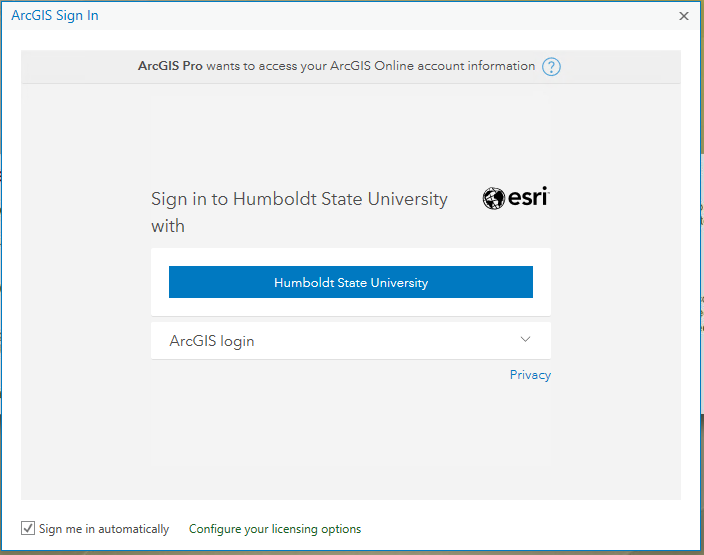
Image
ArcGIS Pro wants to access your ArcGIS Online account information (help link with question mark icon) Sign in to Cal Poly Humboldt with Button for Cal Poly Humboldt ArcGIS login dropdown Privacy link Checkbox for Sign me in automatic
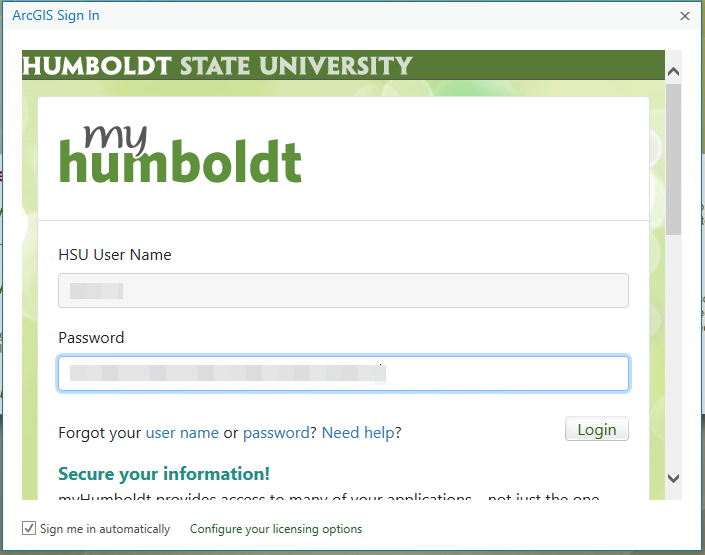
Image
ArcGIS Sign In myHumboldt Username, password, forgot your user name or password? need help? Login button
Image
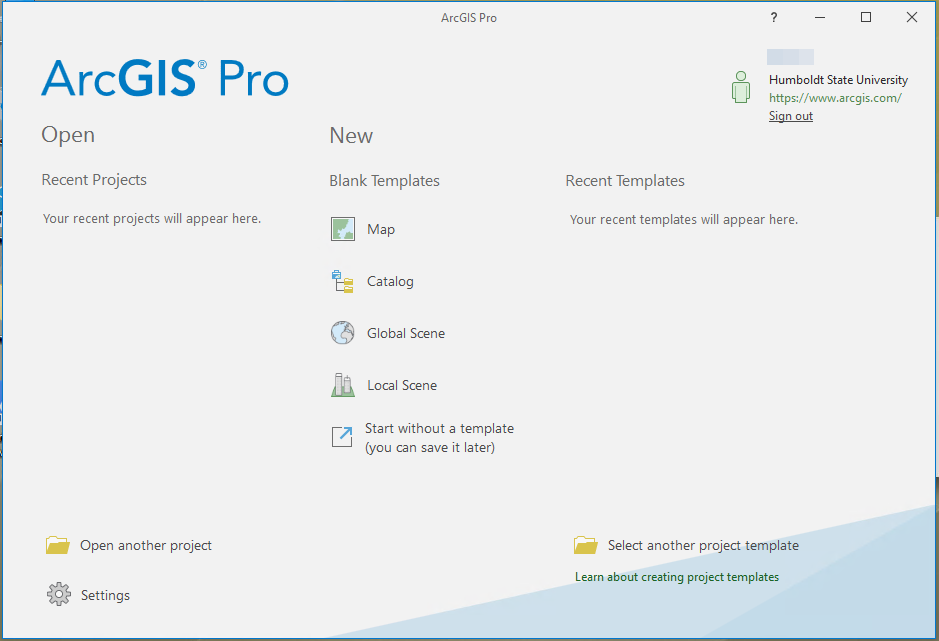
ArcGIS Pro screen shot of the project page

Patching

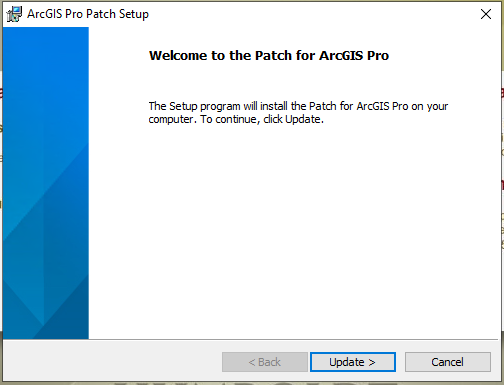
1. To patch your copy of ArcGIS Pro to 2.5.1, make sure ArcGIS Pro is closed, and run ArcGIS_Pro_251_173949.msp
Image
ArcGIS screen shot of the welcome dialog box for patch setup
Image
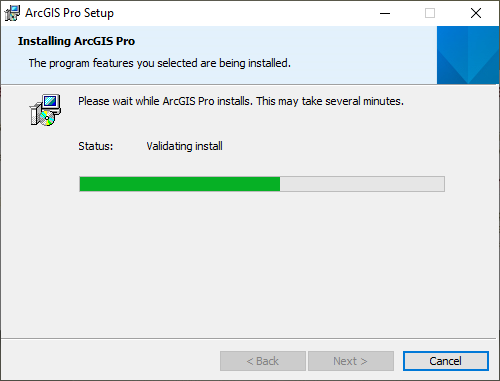
ArcGIS screen shot of Pro Setup dialog of Installing ArcGIS Pro with a status bar half way filled with green and a cancel button
Image
ArcGIS screen shot saying ArcGIS has been successfully installed. With a check box that says run ArcGIS Pro now. and a finish button.


ArcGIS Online (AGOL)

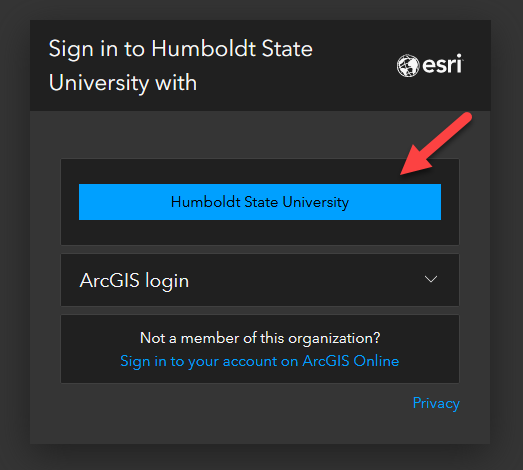
To access Humboldt's ArcGIS Online instance, please go to the following URL in your preferred web browser https://humboldtstate.maps.arcgis.com/and click on the Cal Poly Humboldt button:
Image
ArcGIS Online single sign-on login landing page

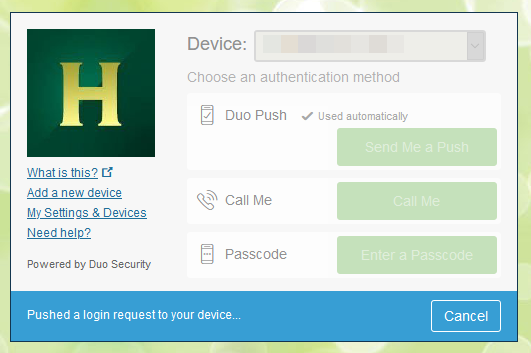
You will then be prompted to enter your Humboldt login credentials and respond to the DUO notification:
Image
ArcGIS Online DUO prompt after logging in

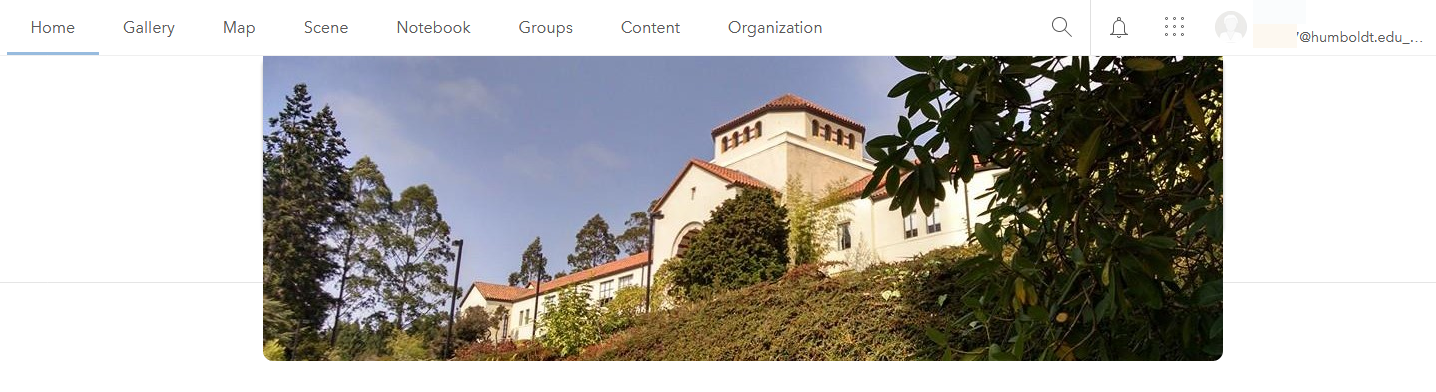
Once you've approved the DUO push notification, you should be redirected to the Cal Poly Humboldt ArcGIS Online instance:
Image
Cal Poly Humboldt Maps ArcGIS Online landing page

Help Desk Hours

Summer 2026

Monday - Friday: 
8am - 4:30pm


After hours emergencies:
Call UPD at (707) 826-5555

System Status

StatusSystemEst. resolution
AvailableAll Systems