





Breadcrumb
Duo
Duo is a Multi-Factor Authentication tool that provides an extra layer of security for your myHumboldt login account. Duo provides a modern, secure, easy-to-use authentication interface and a simple way to add and manage devices associated with your myHumboldt login.
What is Multi-Factor Authentication (MFA)?
Multi-factor authentication (MFA) is used to validate that a person accessing a protected system (such as myHumboldt) is who they say they are by requiring a second form of authentication to log in, such as (1) something they know, (2) something they have, or (3) something they are.
What can you use to log in?
With Duo Universal Prompt, you have multiple methods available to authenticate with, such as:
- Duo Mobile App for push notifications.
- Platform-based authentication (such as TouchID, Android Biometrics, or Windows Hello).
- Hardware tokens (such as a YubiKey device).
- Phone (for texts and phone call authentication).
We recommend having two enrolled devices, with one acting as a backup. You can have two smart devices, like a phone and a tablet, or one smart device and a hardware token. Below are some helpful tips for working with Duo:
- Make sure you have more than one authentication method set up, like a hardware token or your desk or home phone, in case your main method is unavailable.
- If you have a smart phone set up as your primary authentication method and are upgrading your phone, use Duo Restore to update your settings.
- You can select to “remember your device” to avoid additional Duo prompts on your system. Duo will remember your device for 6 days, at which point you will be asked to authenticate through Duo again.
- Add as many devices as you need and edit them as you need.
- For support, contact the ITS Help Desk in the Library, at 707-826-4357 or via email at help@humboldt.edu.
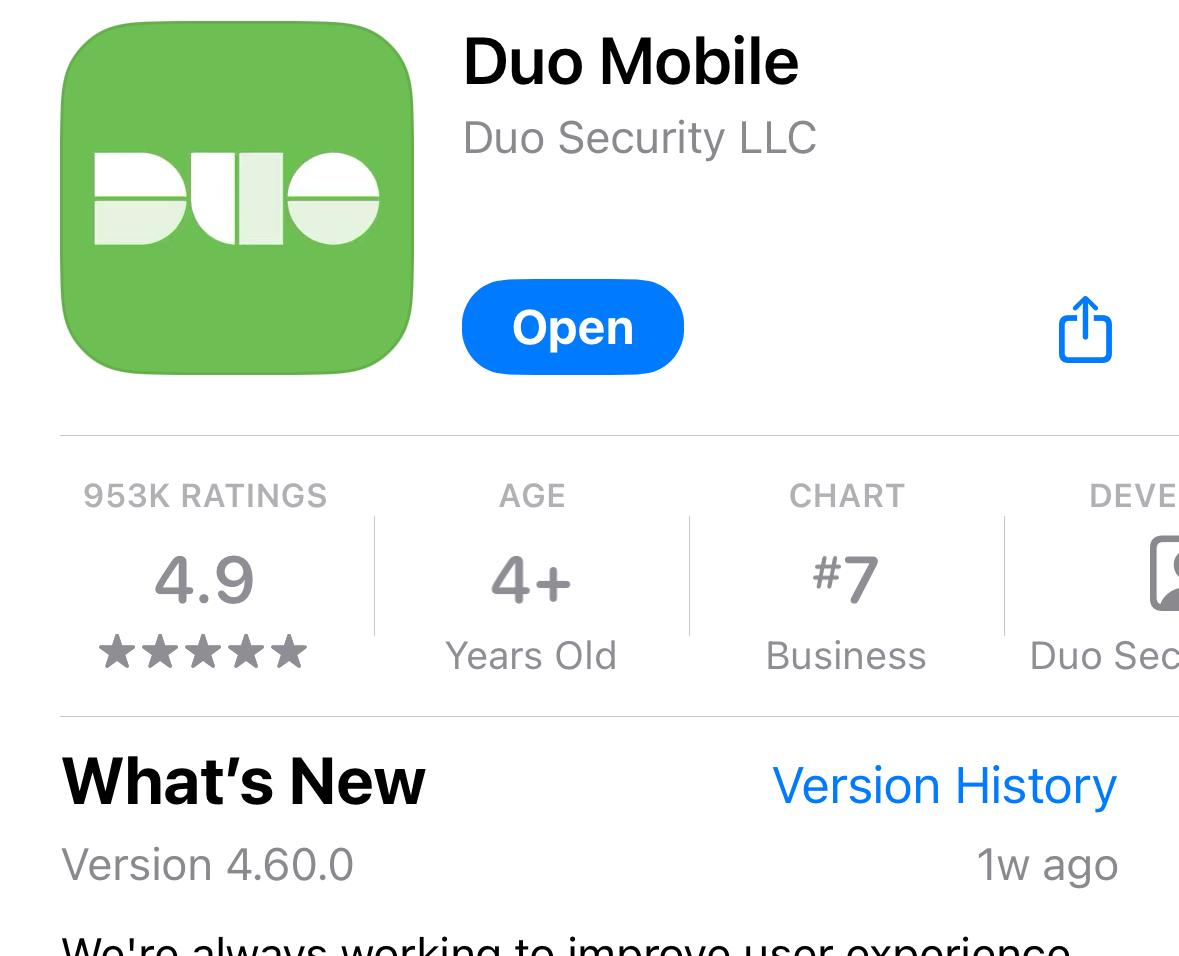
Go to your phone’s App Store (Google Play Store or Apple App Store). Search for “Duo Mobile”, download, and install. In the Apple App Store, it looks like this:
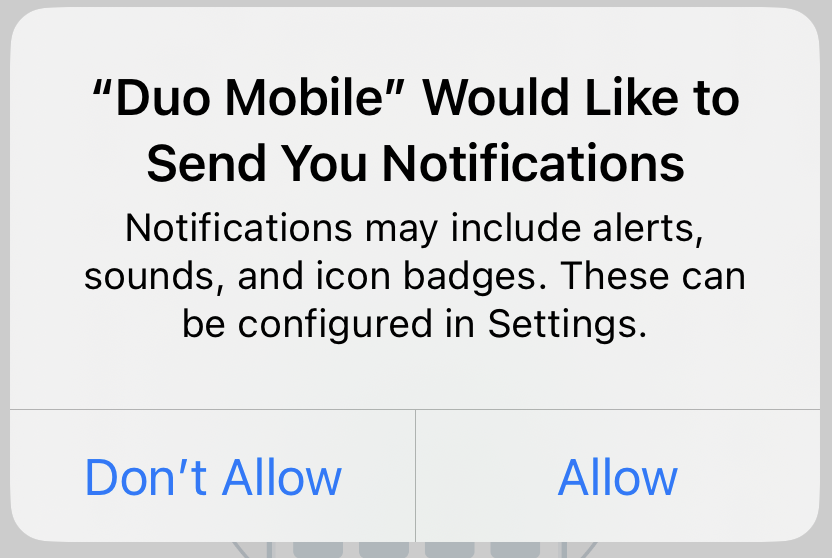
Once installed on your mobile device, you may need to allow Notifications (helps a lot when using DUO):
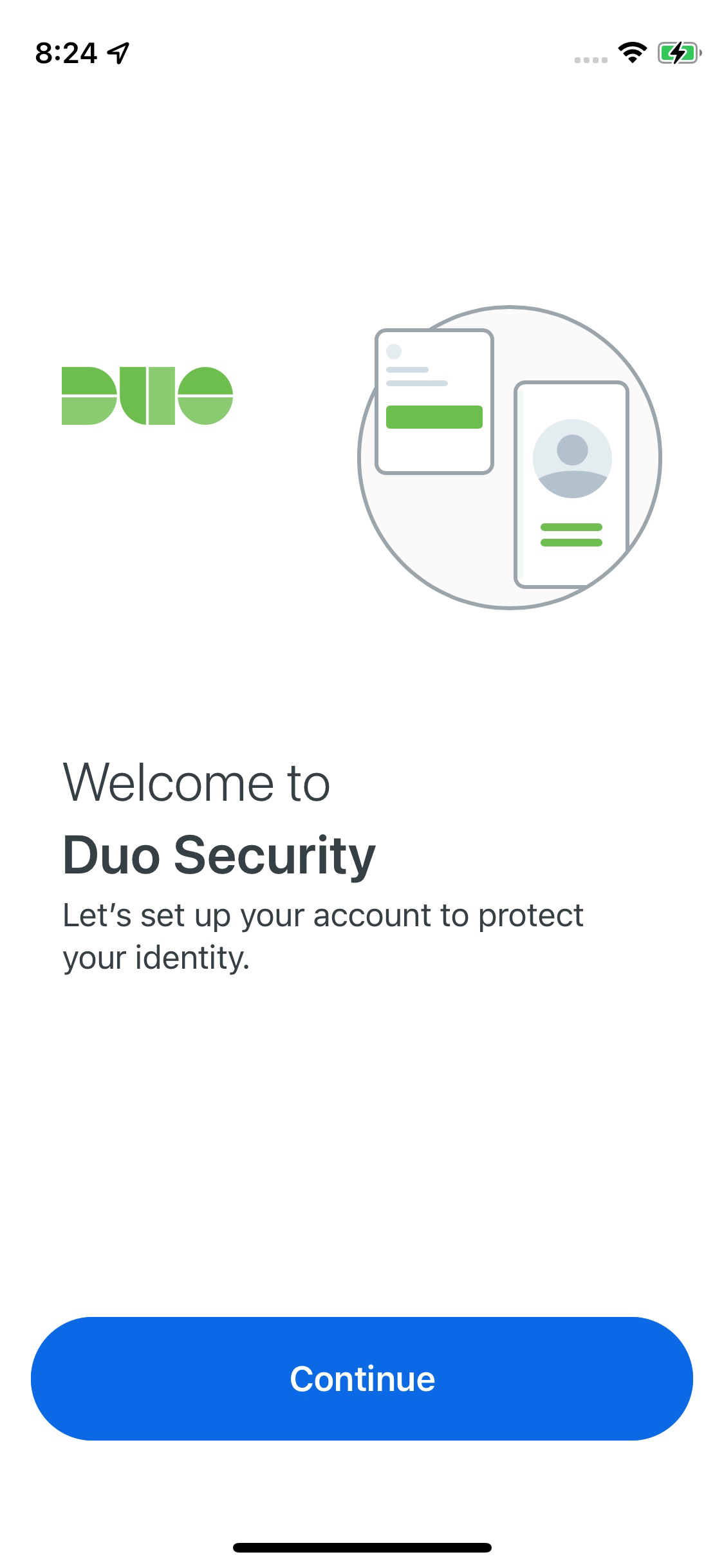
On the initial Duo setup screen, press Continue:
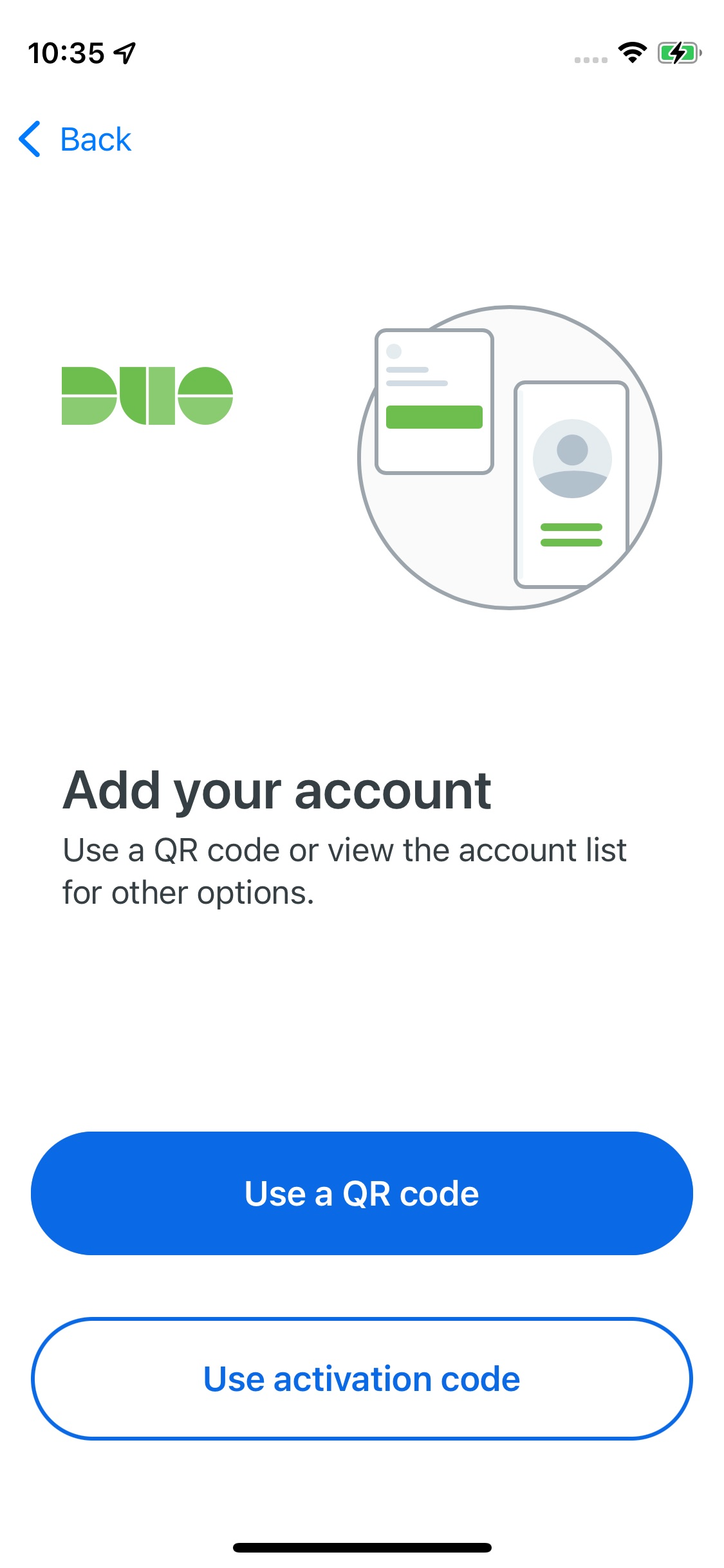
On the Add your account screen, tap either Use a QR code (most common) or Use activation code (if one has been provided to you)
Allow access to the device's camera:
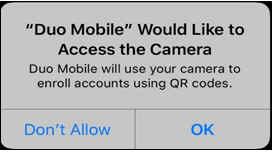
Work through until you see the camera waiting and scan the QR code Duo provides to you for registering a device.
Next you need to enroll in Duo and then add this mobile device to your Humboldt DUO login using a web browser on a computer.
From the Humboldt Portal
- Click on Account Settings from the Tools dropdown at the top of the myHumboldt page.

Go to Requests-> Request Access (check include self if you are an employee)
Image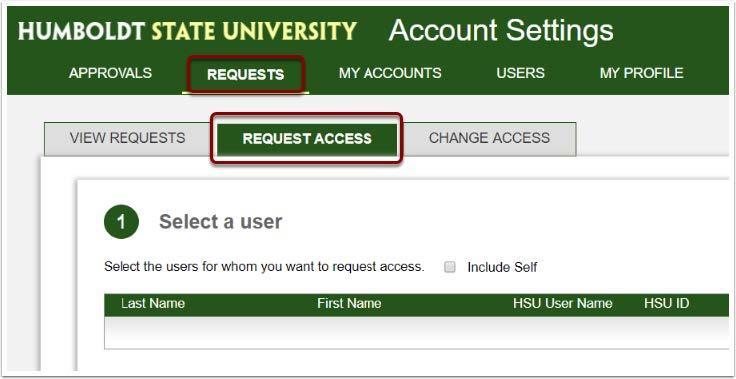 Image
Image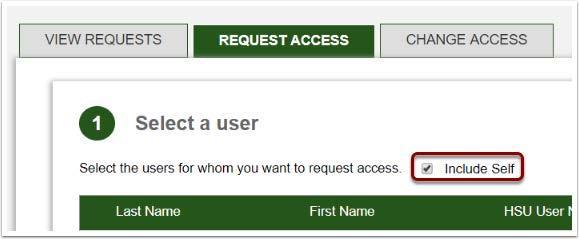
Choose DUO Multi-Factor Authentication (leave dates as permanent)
Image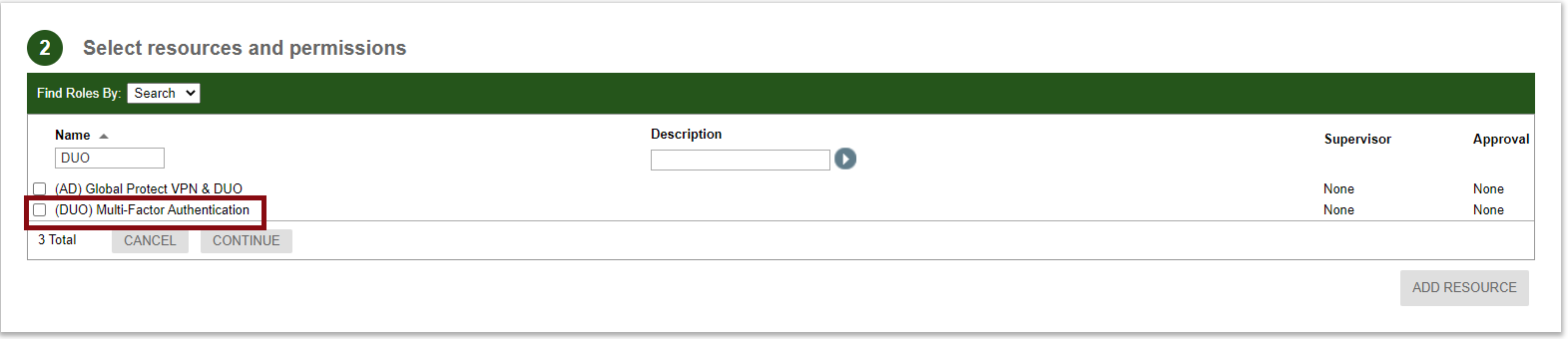
Scroll to the bottom and make sure you submit
Image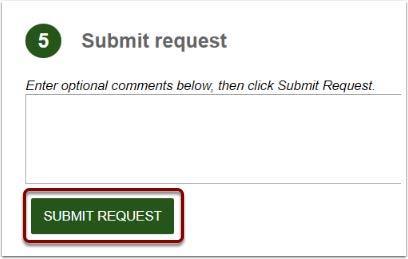
- Exit all the way out of your browser or switch to another browser
On a computer you are able to sign into
Open a website that requires Duo, like http://my.humboldt.edu
If it just opens to your portal (after typing your password), then try a different web browser that has not been used that day. For example, if you are using Google Chrome, open Firefox and go to the myHumboldt web site.
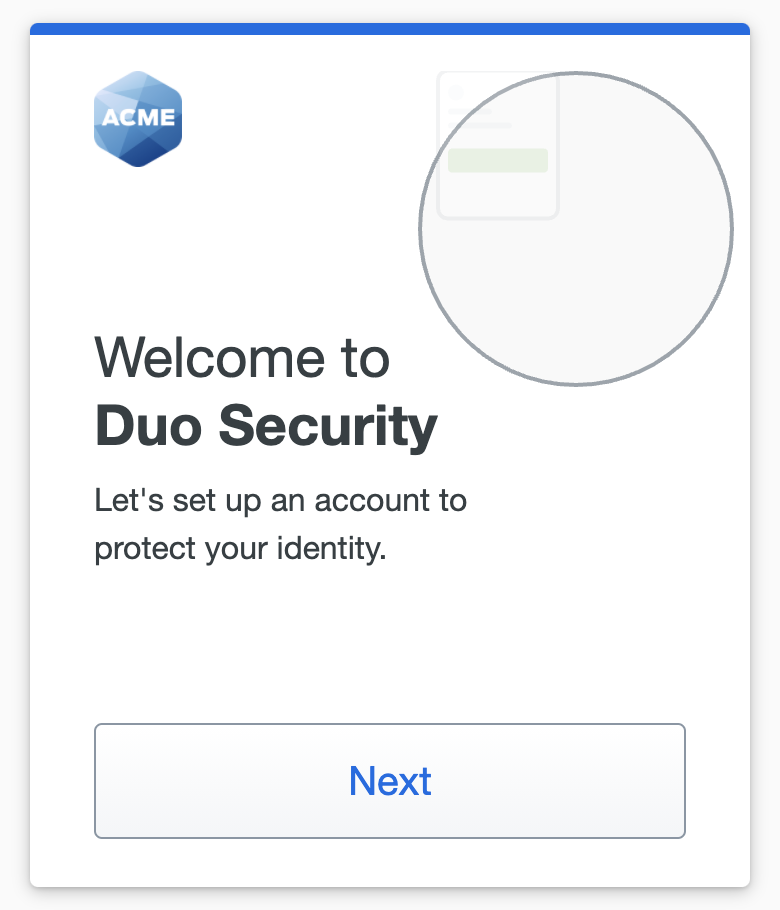
For new Duo users: you should get a “Start setup” screen. Click Next to proceed:
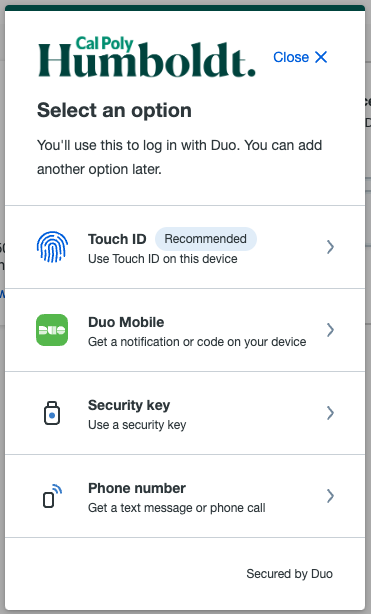
On the Add a device prompt, select Duo Mobile to register a new mobile device (for adding other types of devices, refer to Duo: Add or Manage Devices):
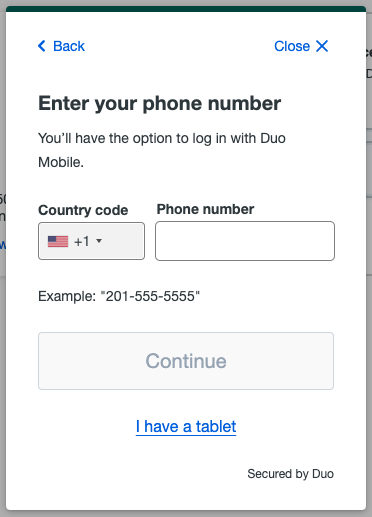
Enter your phone number, click Add phone number, and then verify that the number entered is correct (if you are enrolling a tablet, click I have a tablet):
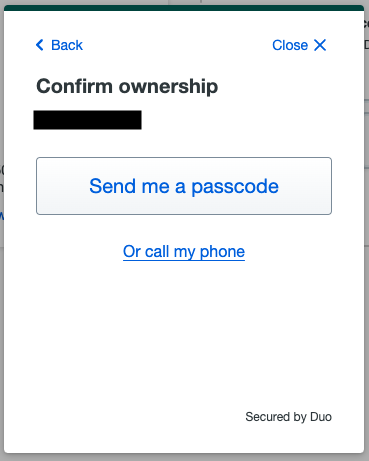
If your phone number has previously been used with Duo, you will be prompted for a passcode or phone call to authenticate:
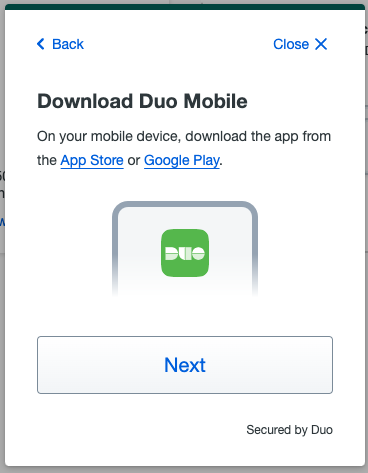
If you haven’t already, download the Duo Mobile app and click Next:
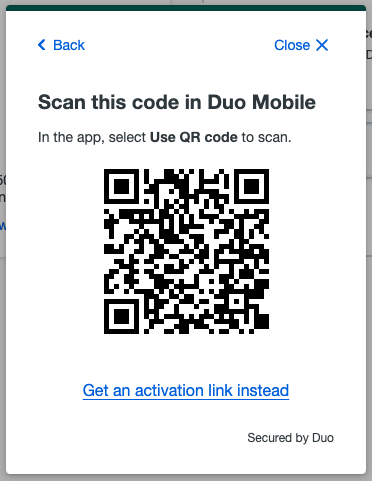
A QR code will appear on screen. Open the Duo Mobile app on your device, and scan the QR code displayed:
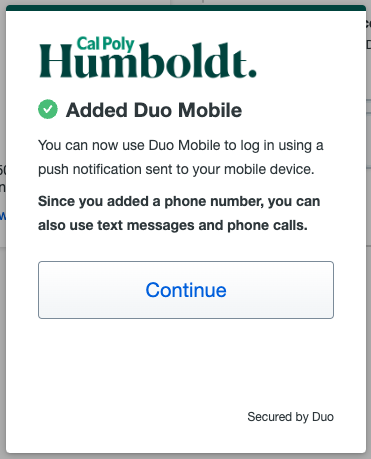
Once your device is registered with Duo, you will see a confirmation prompt:
To update these settings, visit this guide https://guide.duo.com/manage-devices
You can access the portal to manage your devices when you are presented with the Duo authentication prompt.
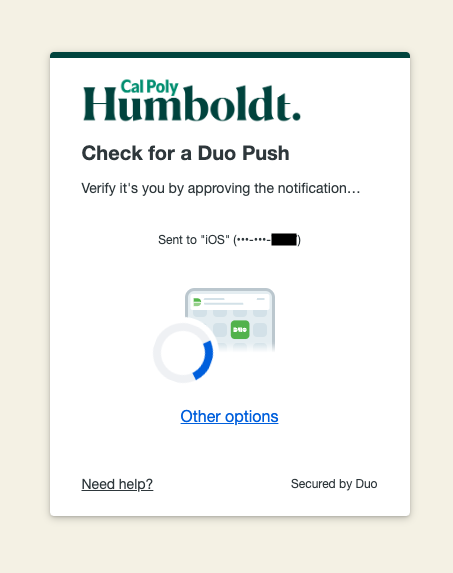
When logging into a website that requires Duo (like myHumboldt), on the Duo authentication screen, click Other options:
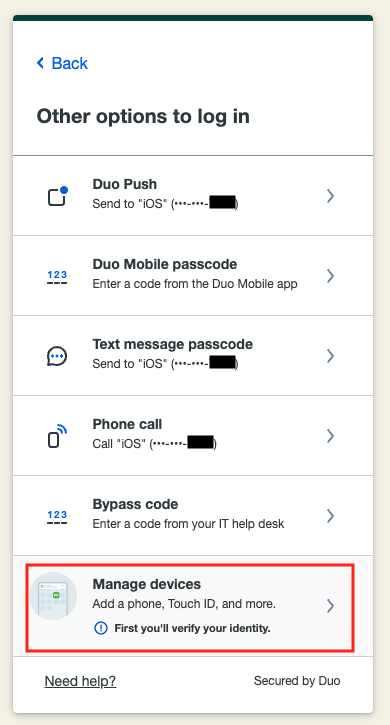
At the bottom of the Options list, click Manage devices:
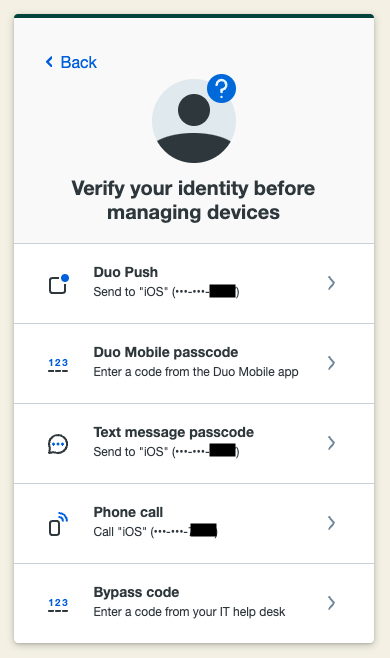
You will be prompted to authenticate Duo first using one of your existing devices:
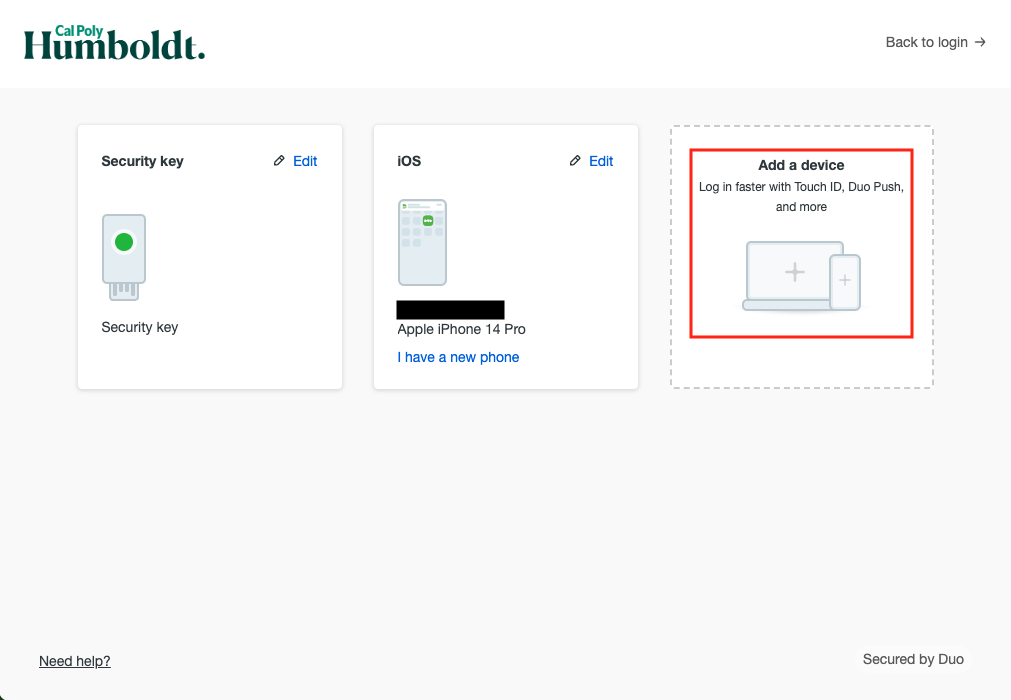
You will be taken to the device management portal. In the portal, click Add a device:
On the Add a device prompt, select Duo Mobile to register a new mobile device (for adding other types of devices, refer to Duo: Add or Manage Devices):
Enter your phone number, click Add phone number, and then verify that the number entered is correct (if you are enrolling a tablet, click I have a tablet):
If your phone number has previously been used with Duo, you will be prompted for a passcode or phone call to authenticate:
If you haven’t already, download the Duo Mobile app and click Next:
A QR code will appear on screen. Open the Duo Mobile app on your device, and scan the QR code displayed:
Once your device is registered with Duo, you will see a confirmation prompt:
To update these settings, visit this guide https://guide.duo.com/manage-devices