





Breadcrumb
Reporting Phishing Emails
Follow the guide below to report a suspected phishing email. You don’t need to be certain an email is malicious to report it. When in doubt, it’s always better to err on the side of caution and report anything suspicious.
How Do I Report a Suspicious Email?
Using Gmail in a Web Browser (Desktop or Laptop)
1. Open the email you want to report.
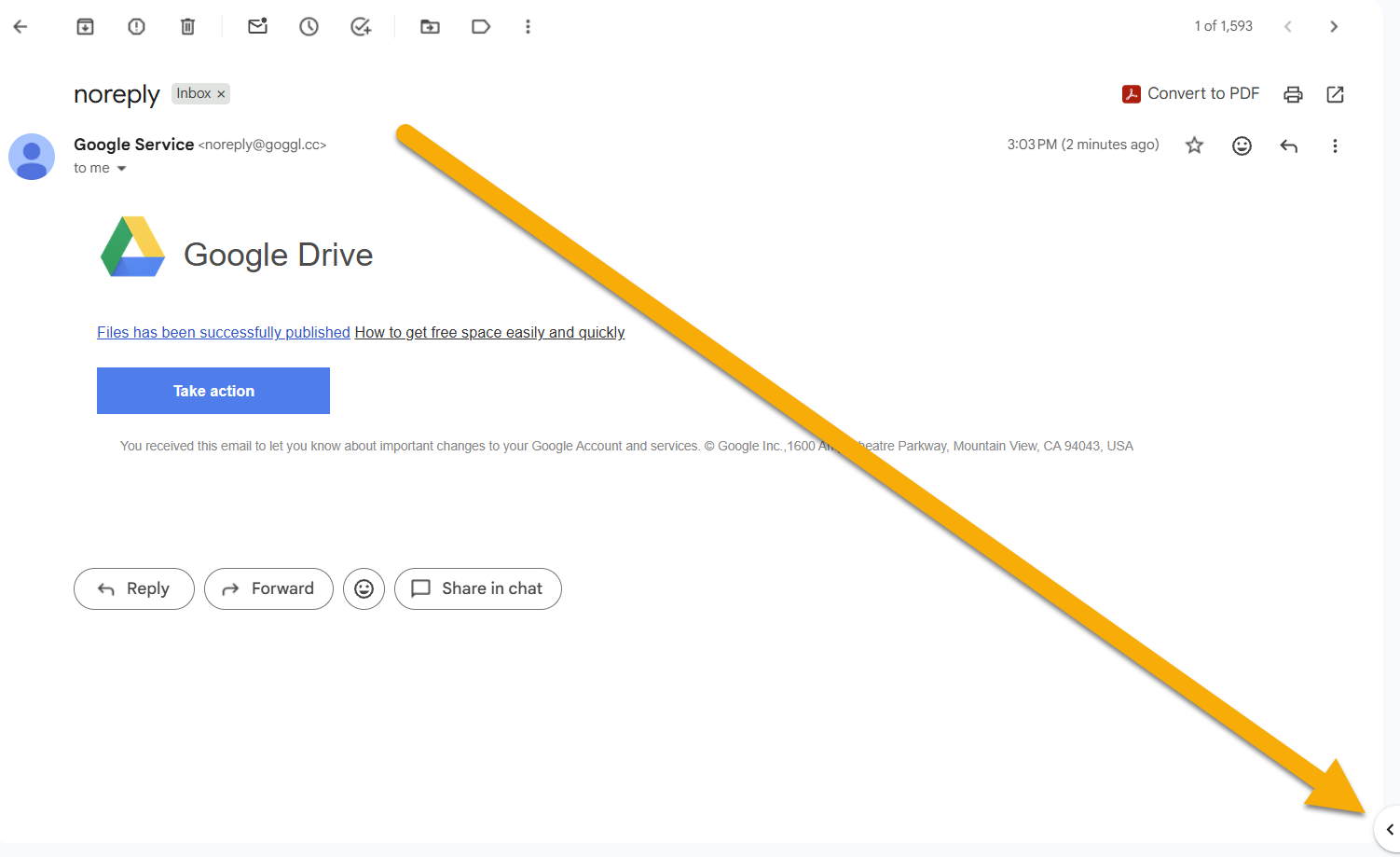
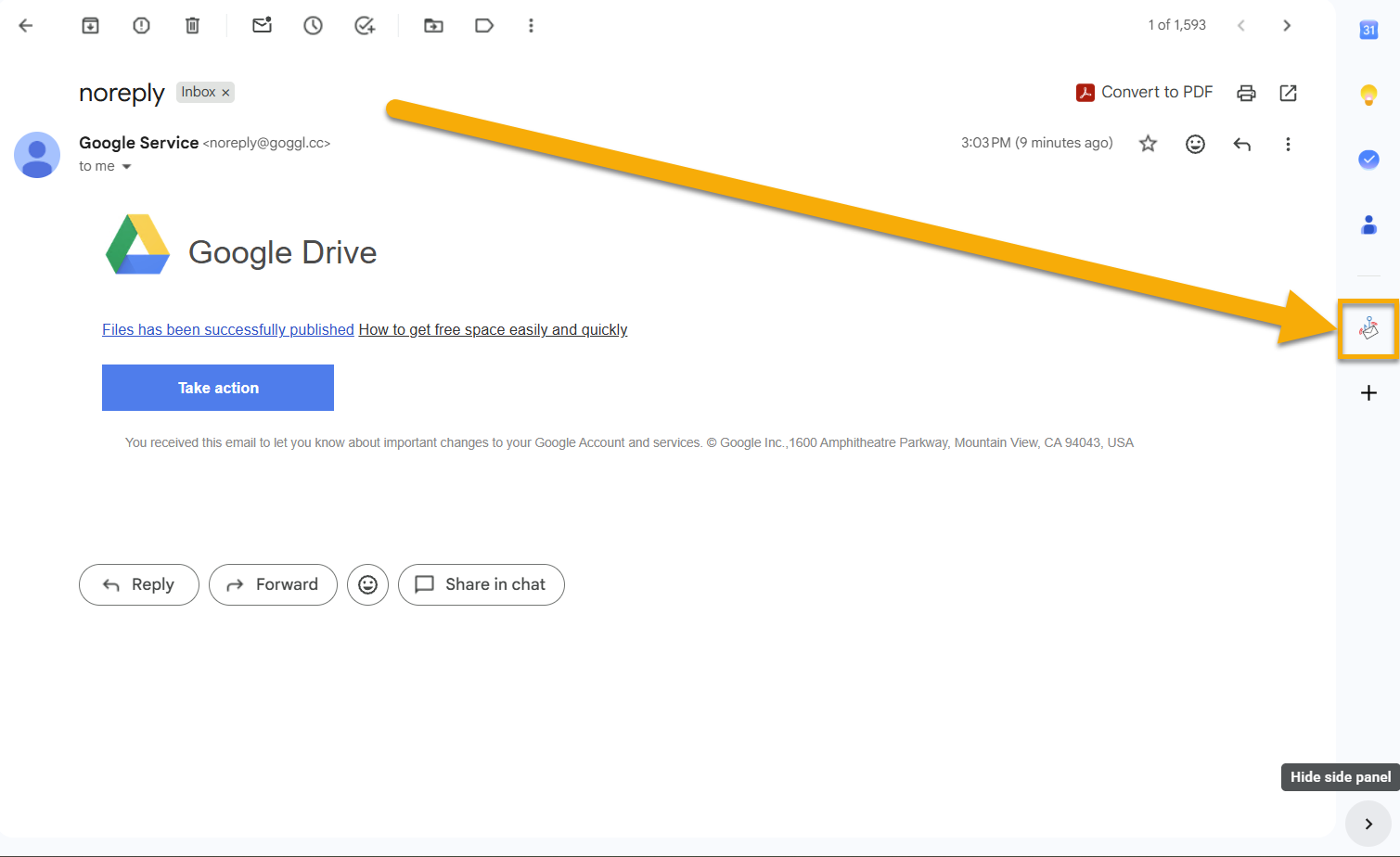
2. Locate the side panel on the right side of the Gmail window.
- Look for the "Report Suspicious" icon (a circular blue icon with a white fishhook).
- If the side panel is hidden, click the small white arrow (<) in the bottom-right corner of the screen to expand it.
Image
3. Open Report Suspicious by clicking the icon.
Image
- A panel titled “Report Suspicious” will appear.
Image
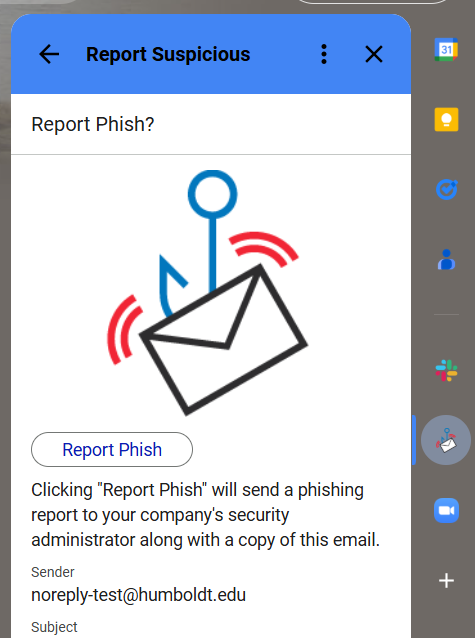
4. Submit the report by clicking Report As Suspicious.
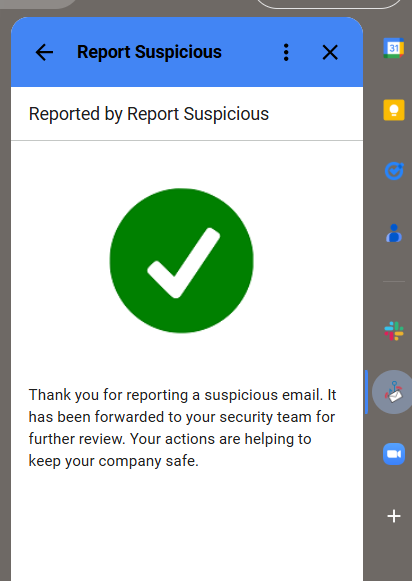
5. Confirmation
- You will see a confirmation message.
- The reported email will automatically be moved to your Trash folder.
Image
Using the Gmail Mobile App (iOS or Android)
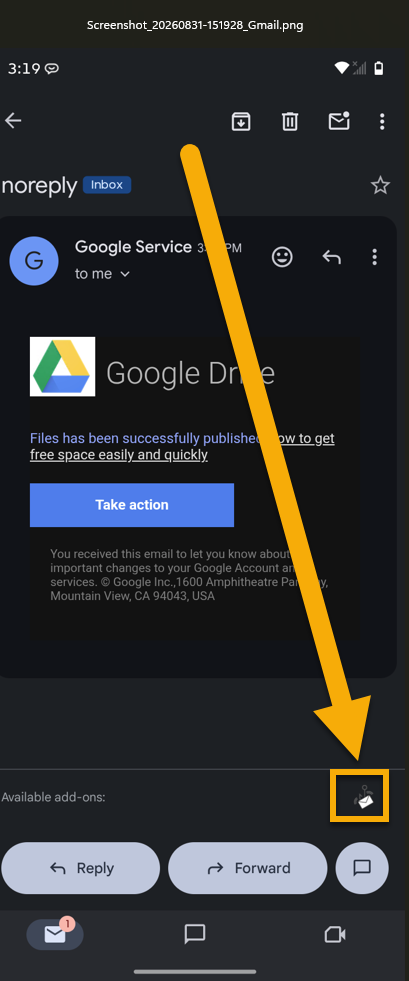
- Open the email in the Gmail app.
- Scroll to the bottom of the message content, past the signature and reply options.
- Under Available Add-ons, tap the Report Suspicious icon.
- Tap Report As Suspicious.
The email will be removed from your Inbox immediately.
Image
Once you report a message, the following steps occur:
- Automated analysis
The email is reviewed by Proofpoint’s automated threat detection system. - Classification notice
You will typically receive an automated follow-up email (often the same day) identifying the message as Malicious, Suspicious, or Low Risk. - Safe messages
If the email is determined to be safe, it will remain in your Trash or Junk folder, where you can retrieve it if needed.