




Breadcrumb
vLinux - Home Use Instructions
Starting Fall 2022, Global Protect is required to access vLinux from off-campus.
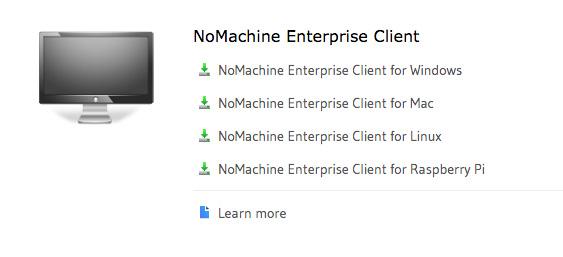
1. Download the NoMachine Enterprise Client for your platform (toward the bottom of the page).
https://www.nomachine.com/download-enterprise#NoMachine-Enterprise-Client
Image
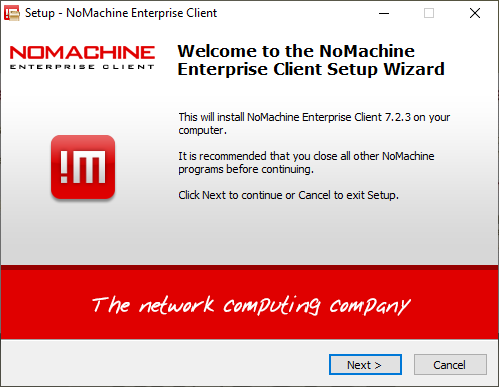
2. Install the NoMachine Enterprise Client.
Image
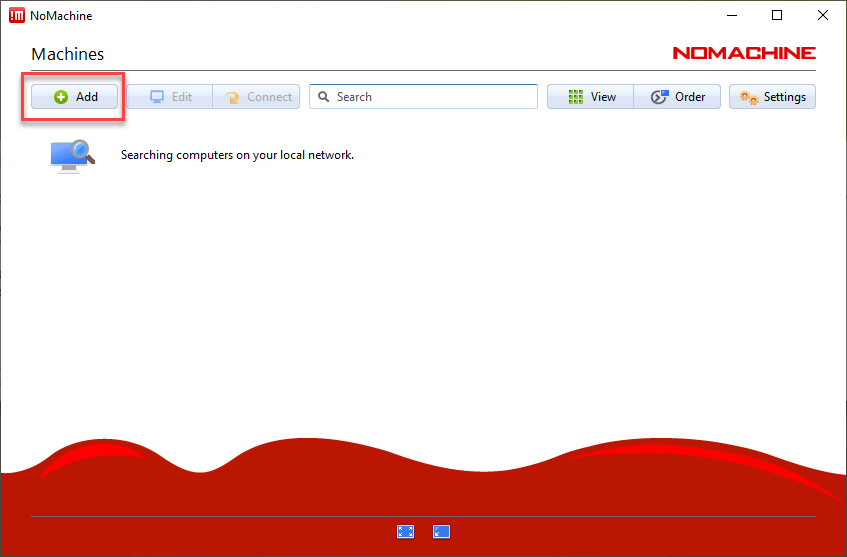
3. Configure the NoMachine Enterprise Client
- Click on the Add button:
Image
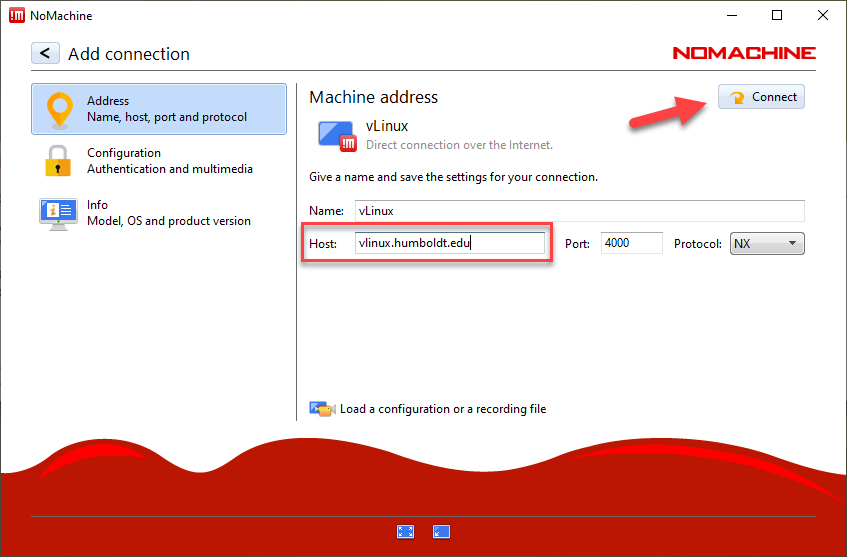
- Enter any name for your connection (e.g. vLinux), enter vlinux.humboldt.edu in the Host field, and click Connect:
Image
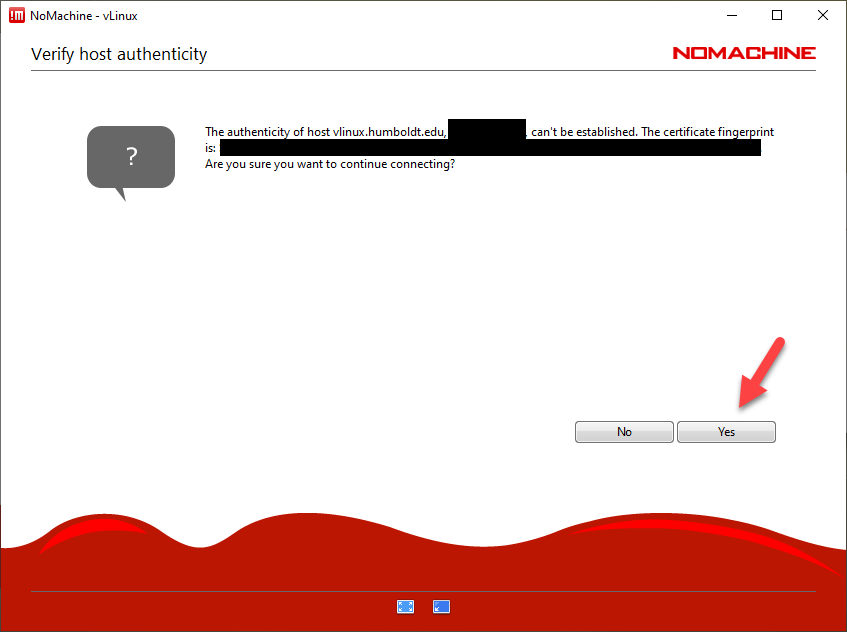
- You will then be presented with the "Verify host authenticity" prompt. So long as the IP address begins with 137.150.X.X, click Yes:
Image
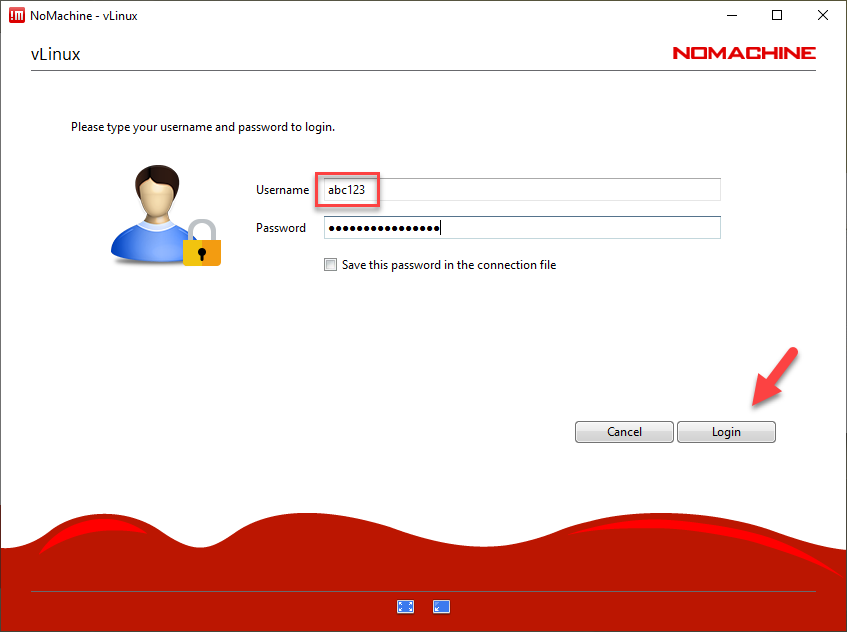
- Enter your Humboldt user name and password and then click Login:
Image
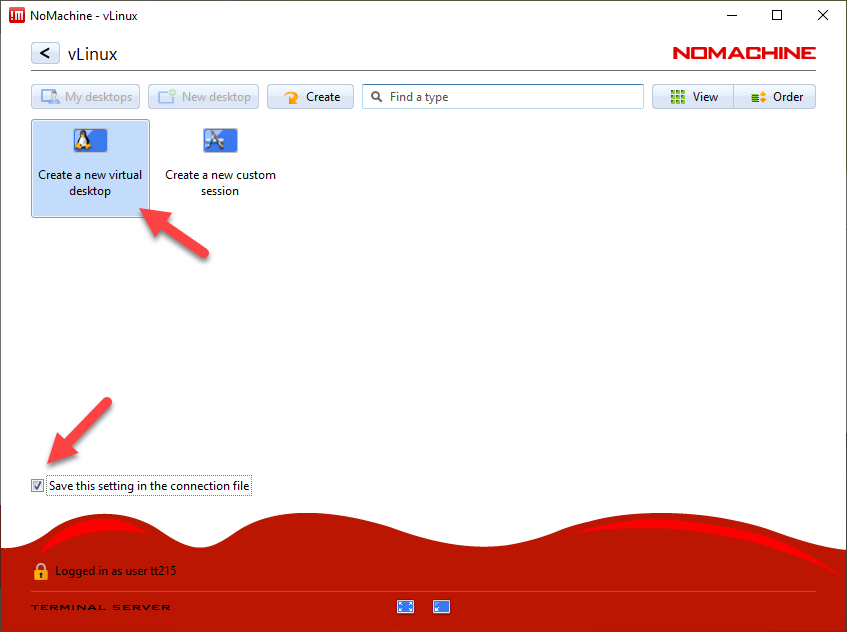
- You can save your settings in the connection file by checking the "Save this setting in the connection file" checkbox and then double-click on the "Create a new virtual desktop" icon to start your session:
Image
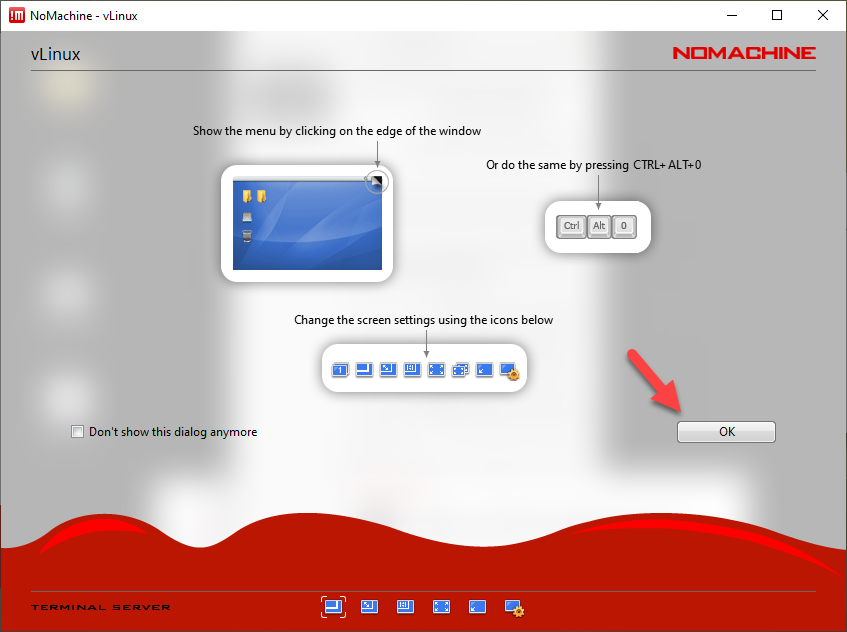
- You will then be presented with a series of tips showing you how to customize your session. If you don't want to see this each time, click on the "Don't show this dialog anymore" checkbox. Click OK through each of the how-to screens until they disappear:
Image
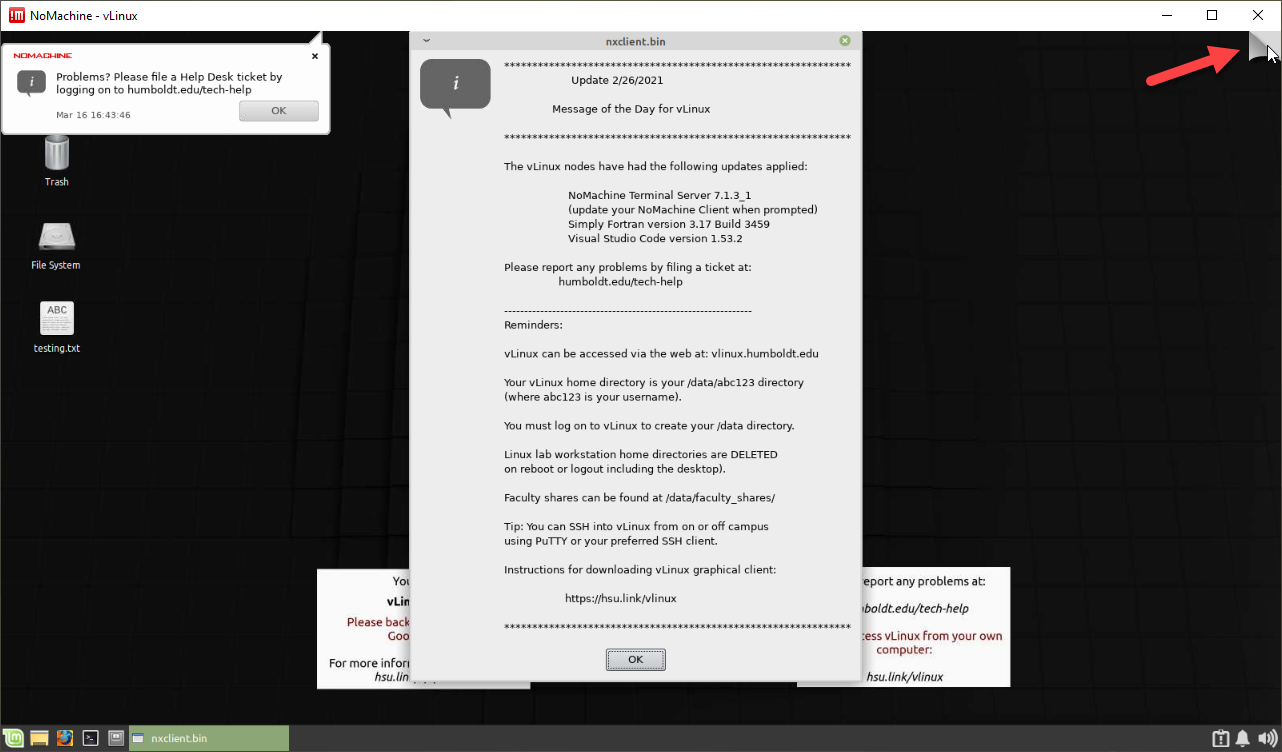
- Congratulations! You are now connected to the vLinux server! To get back to the NoMachine settings, move your pointer to the top right-hand corner of the screen until you see a dog-eared page appear in that corner of the NoMachine window:
Image
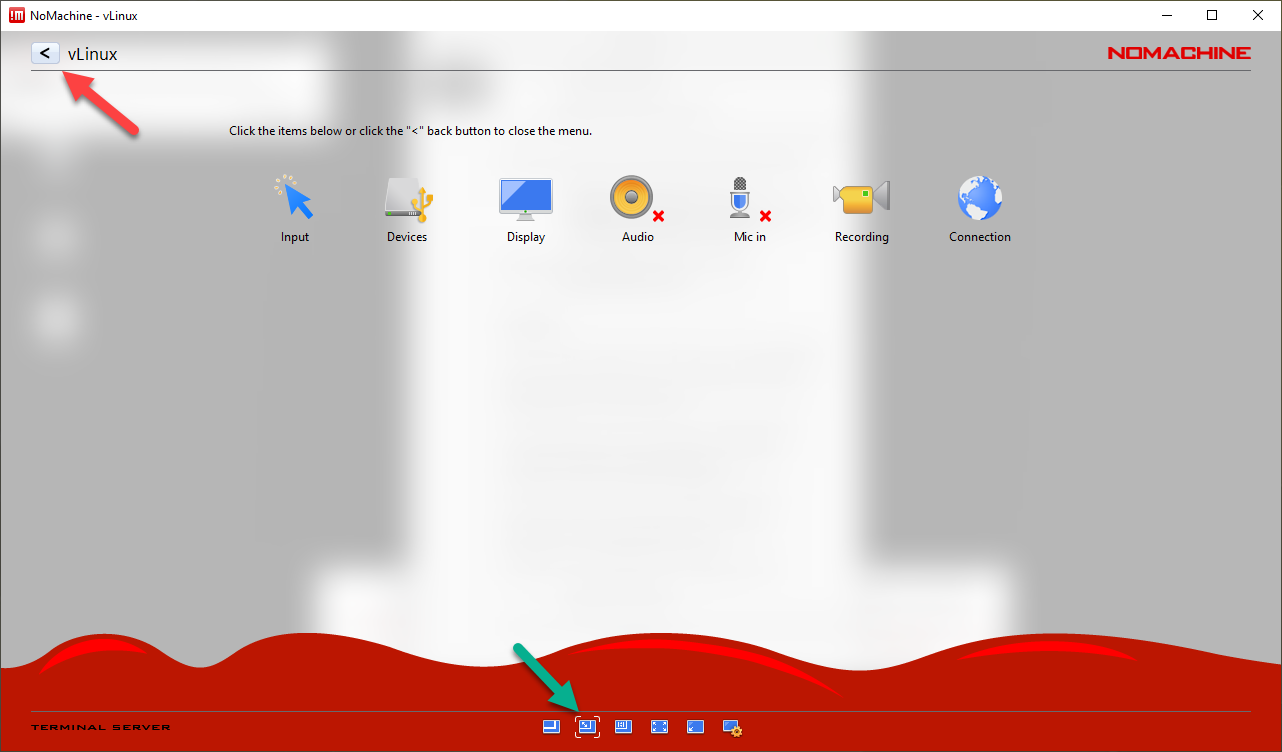
- When you click on that icon, the settings overlay will reappear giving you the ability to change your session's resolution among other settings.
- Clicking on the second icon at the very bottom will cause your session to scale to the size of the NoMachine window.
- When finished, click on the < button at the top left-hand side of the settings overlay:
Image
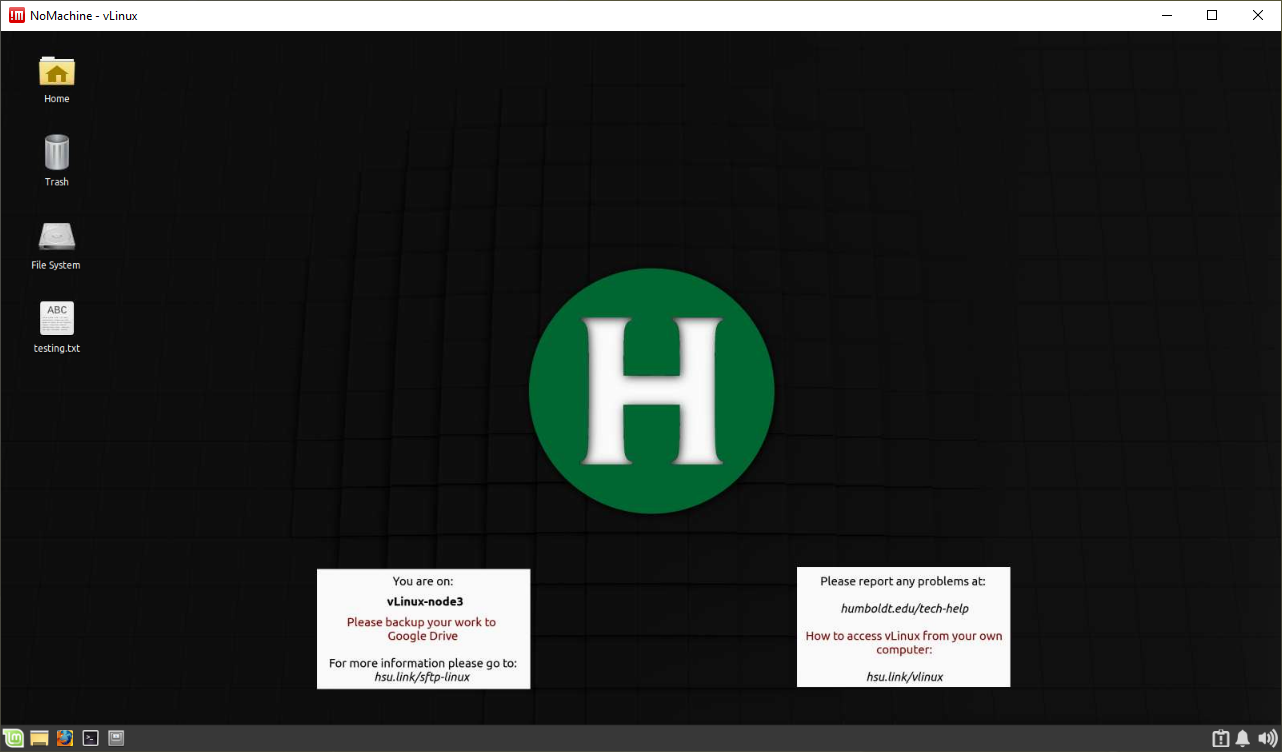
- You are now ready to use vLinux:
Image
- When finished with your vLinux session, it's always recommended to log out instead of just clicking on the close window button.
- Do do so, click on the application launcher icon (Linux Mint icon), and then click on the power button icon at the top right-hand side of the application launcher:
Image
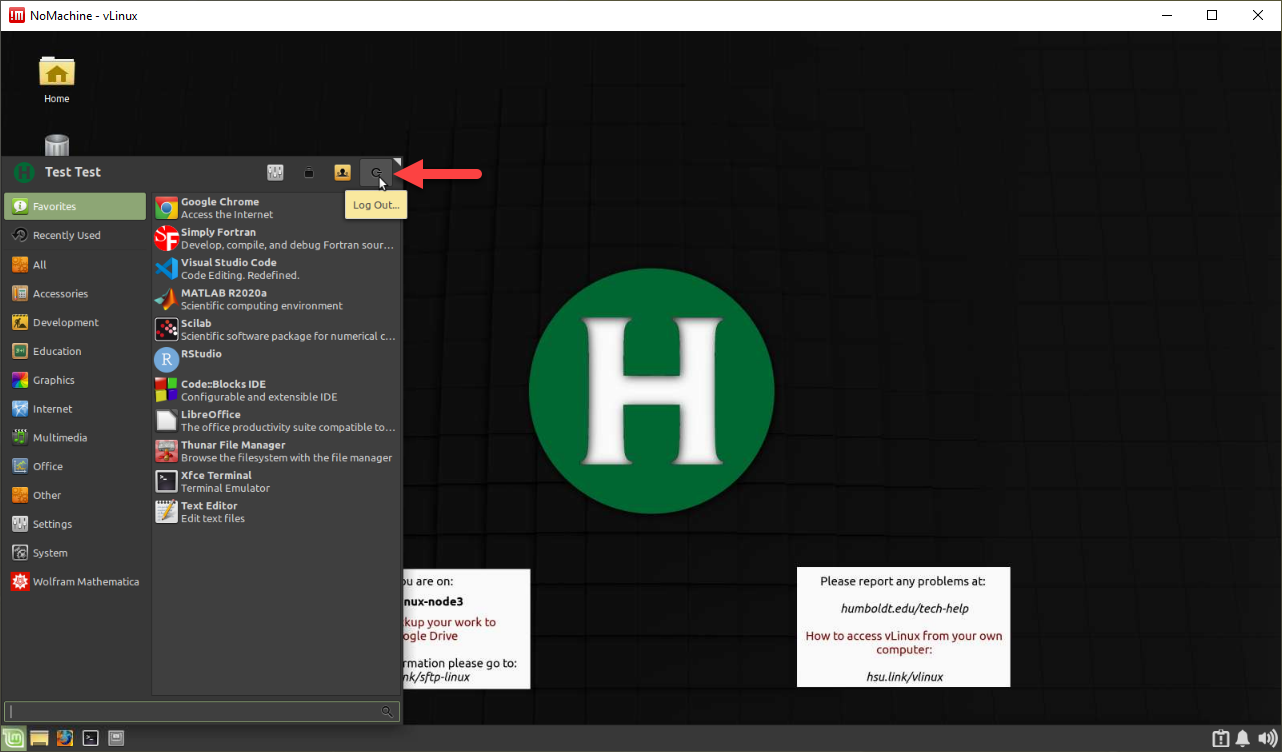
Click log out and your session will be fully logged out.