





Breadcrumb
Instructions for Logging onto vLab
You can connect from a Web Browser, Windows RDP client, Macintosh RDP client and mobile devices.
Using a web browser to login to vlab.humboldt.edu
1. From any web browser go to: vlab.humboldt.edu
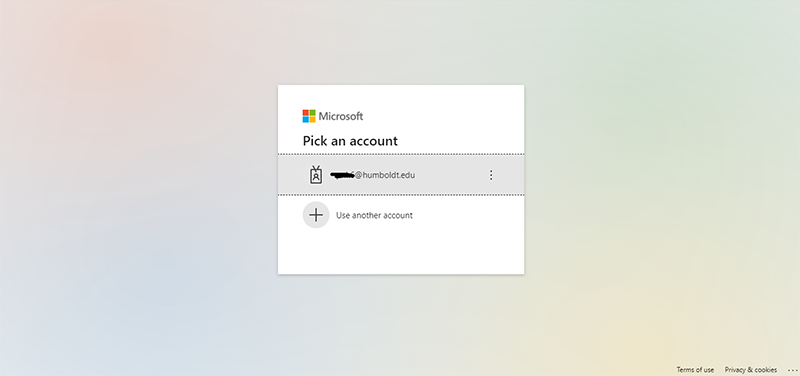
2. You will be asked for a Microsoft sign in. Use your Humboldt email (example: abc123@humboldt.edu)
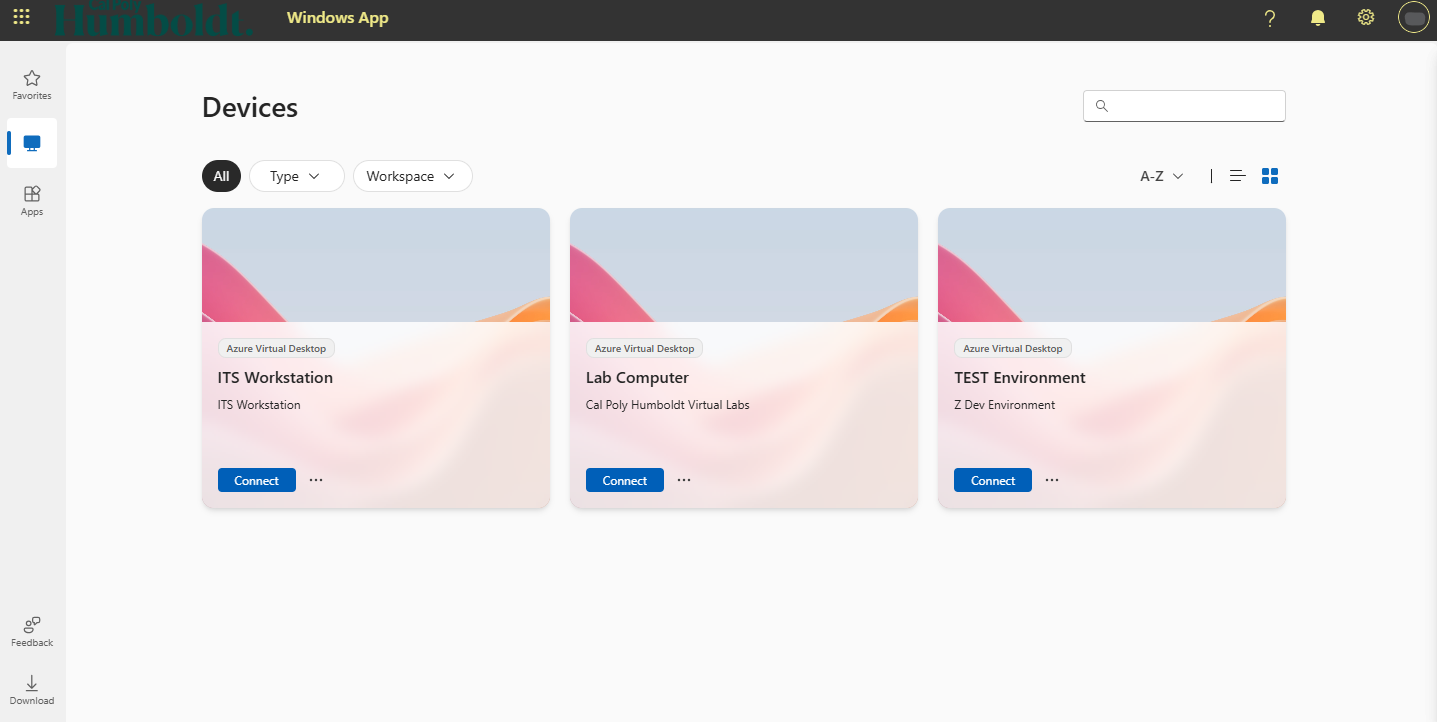
3. To connect to vLab, double click Lab Computer
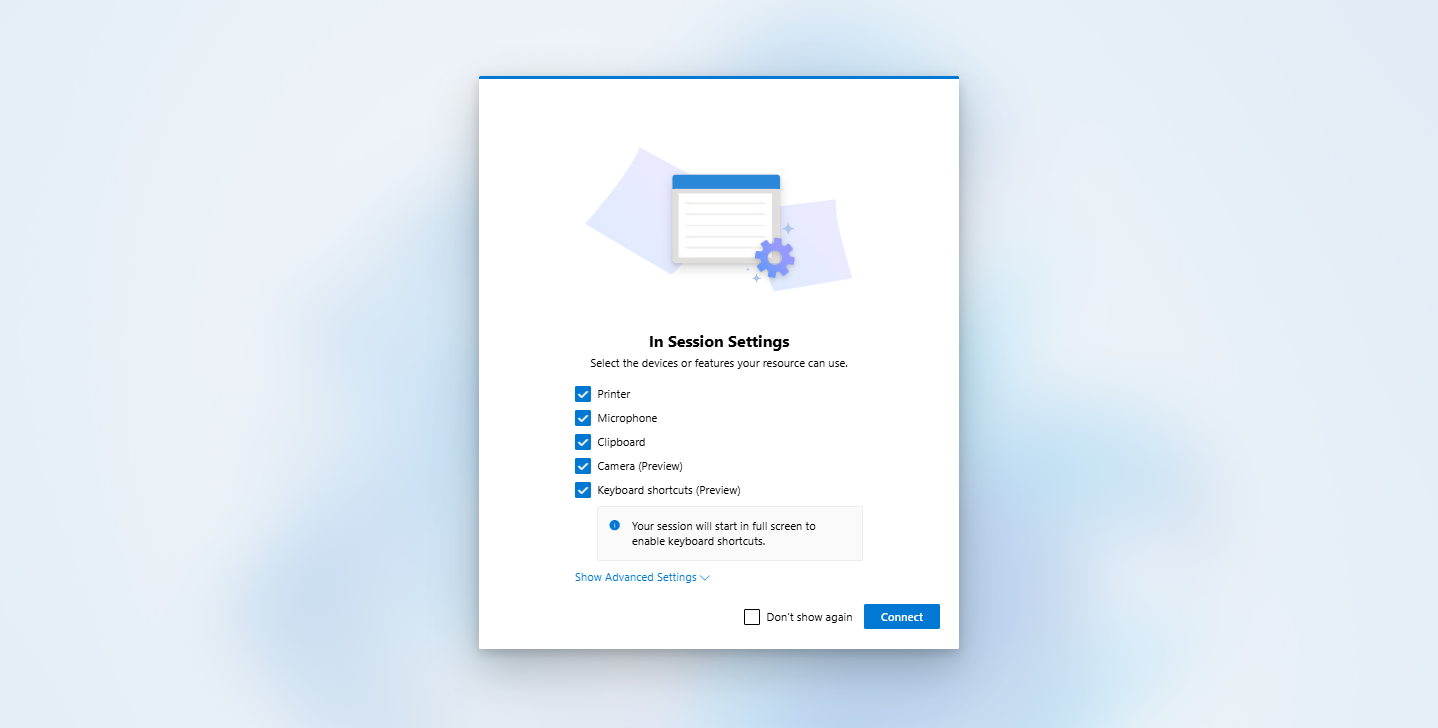
4. You will see the Access local resources popup. Click Allow
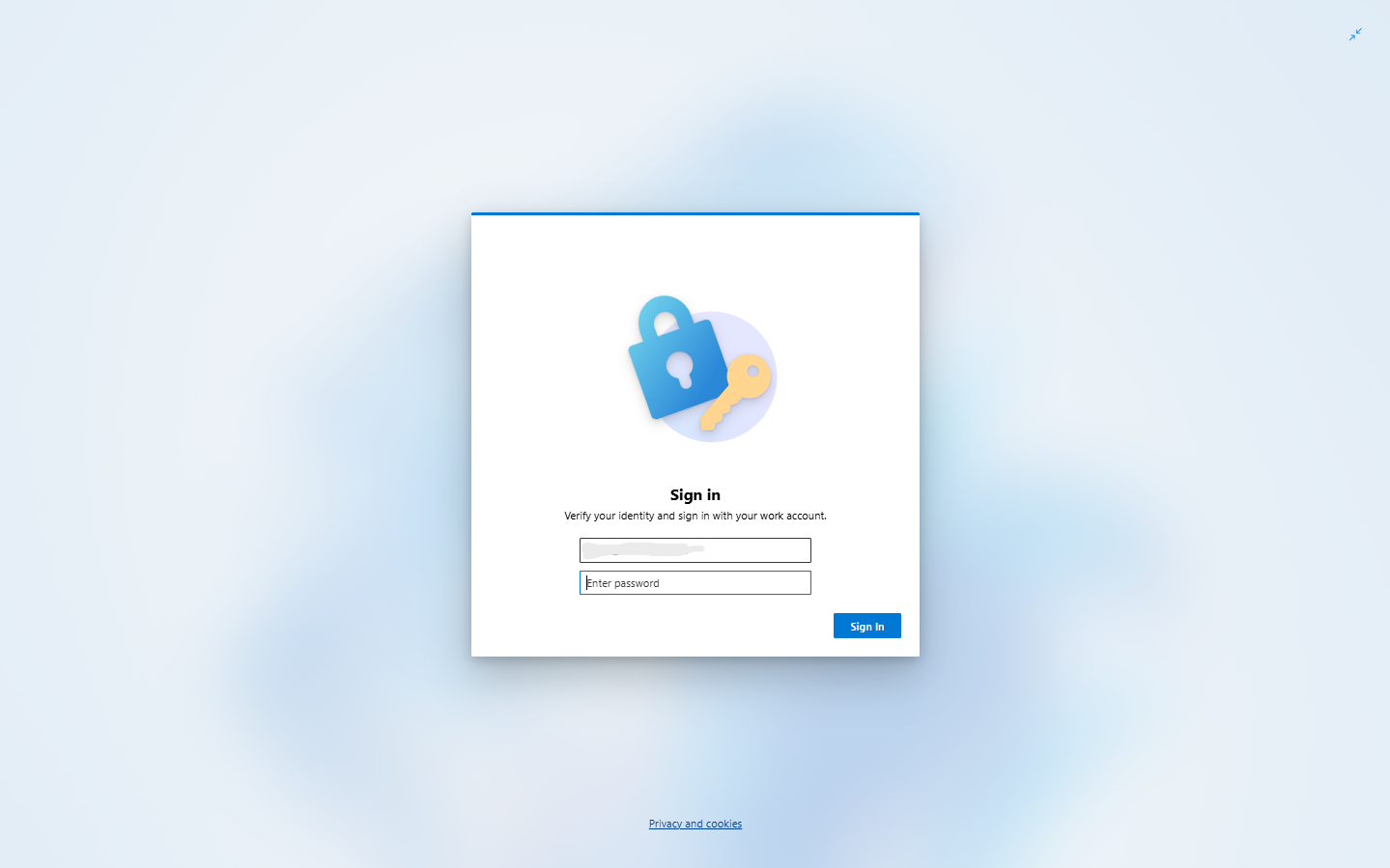
5. You will be asked to sign in again. Use your Humboldt logon (example: abc123)
6. You are now in vLab.
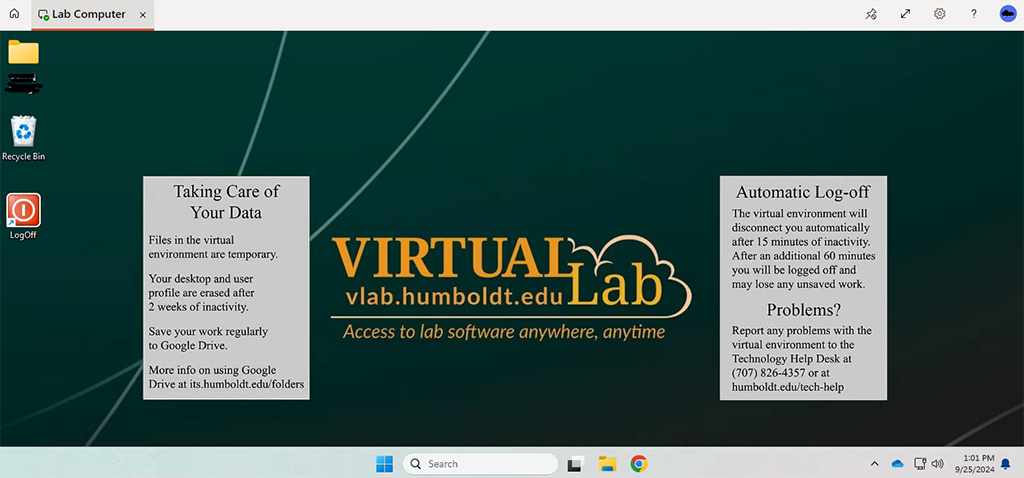
How to Connect using Windows
1. Download the Windows app.
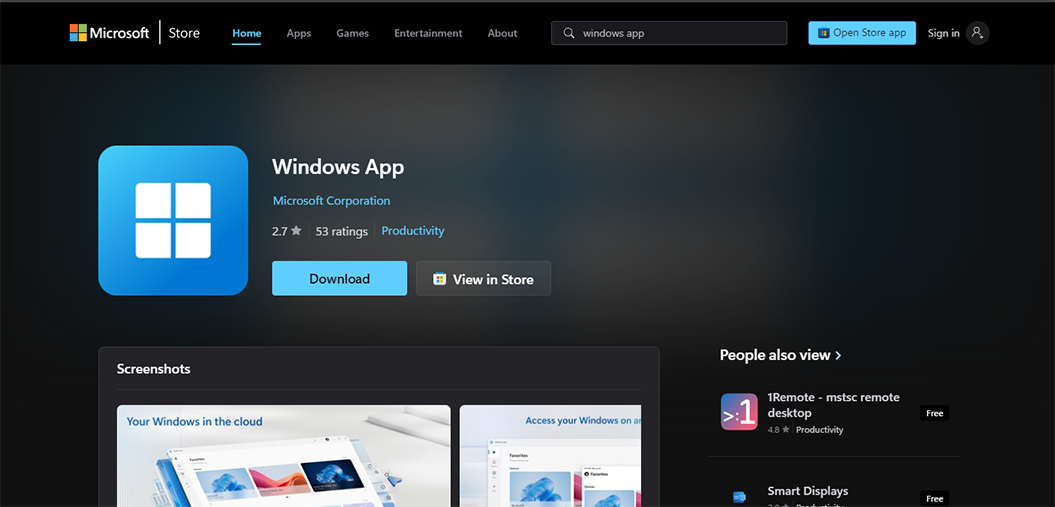
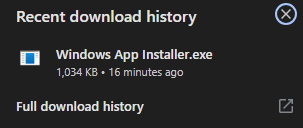
2. Run the Windows app installer.exe
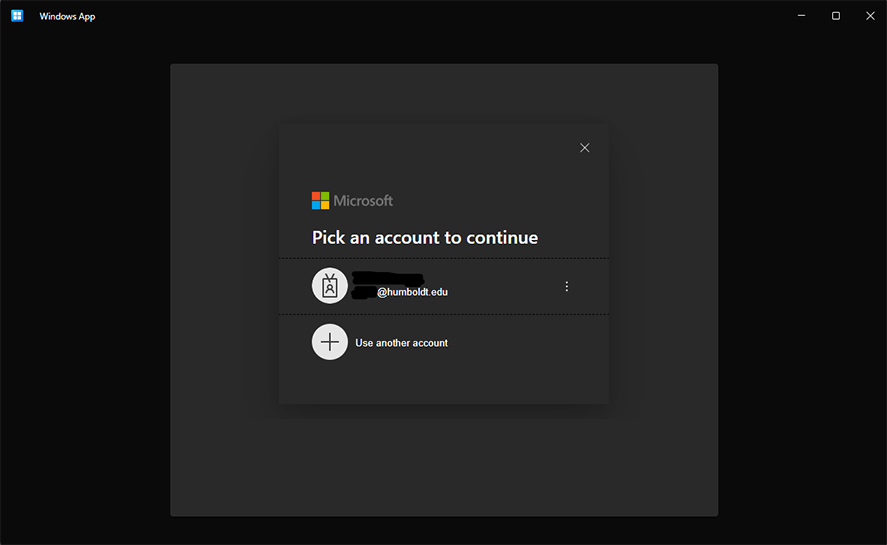
3. Sign into your humboldt.edu email address
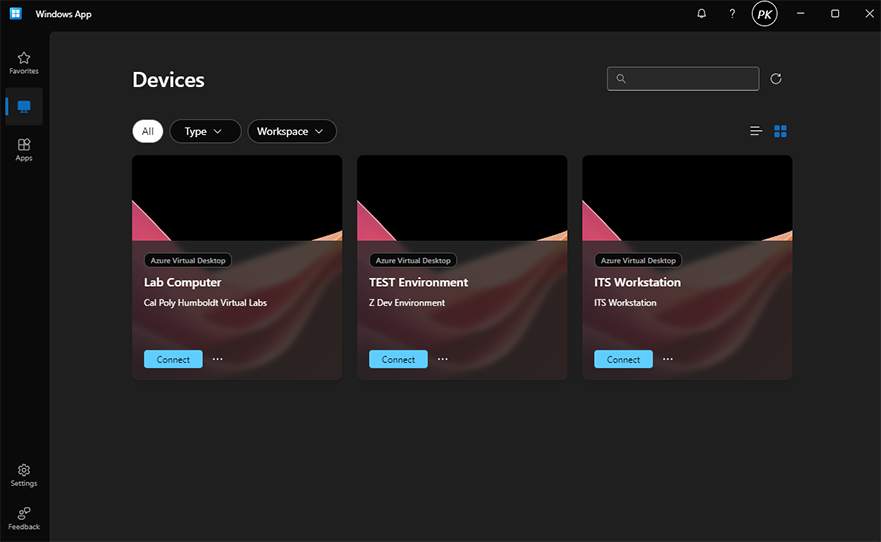
4. Locate “Lab Computer” and click connect
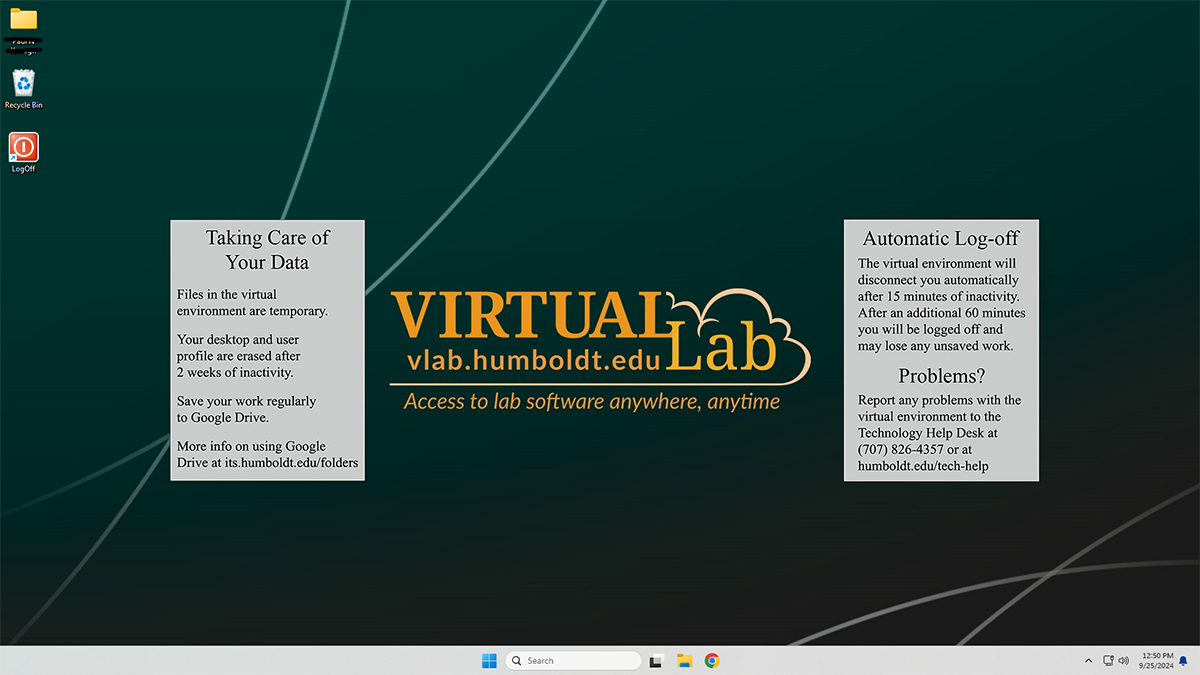
5. You are now in vLab
How to Connect using macOS
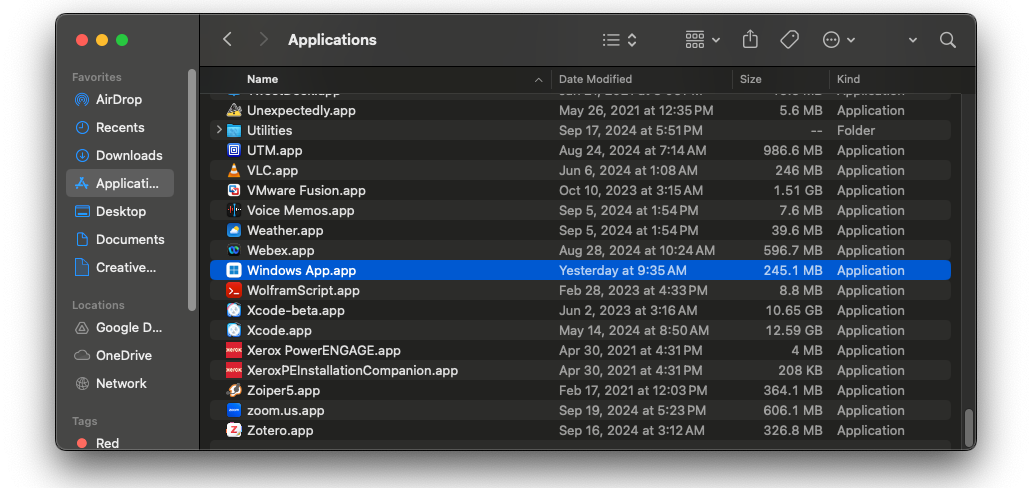
1. Launch Windows.app located in the /Applications folder. If you are on a personal Mac computer, you can download the Windows.app from the Mac App Store.
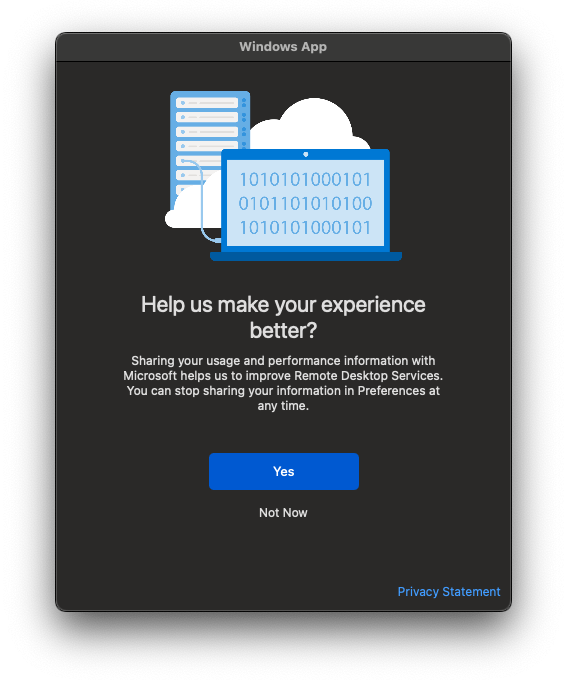
2. You may be asked to share your usage and performance data with Microsoft. Make the choice you are comfortable with.
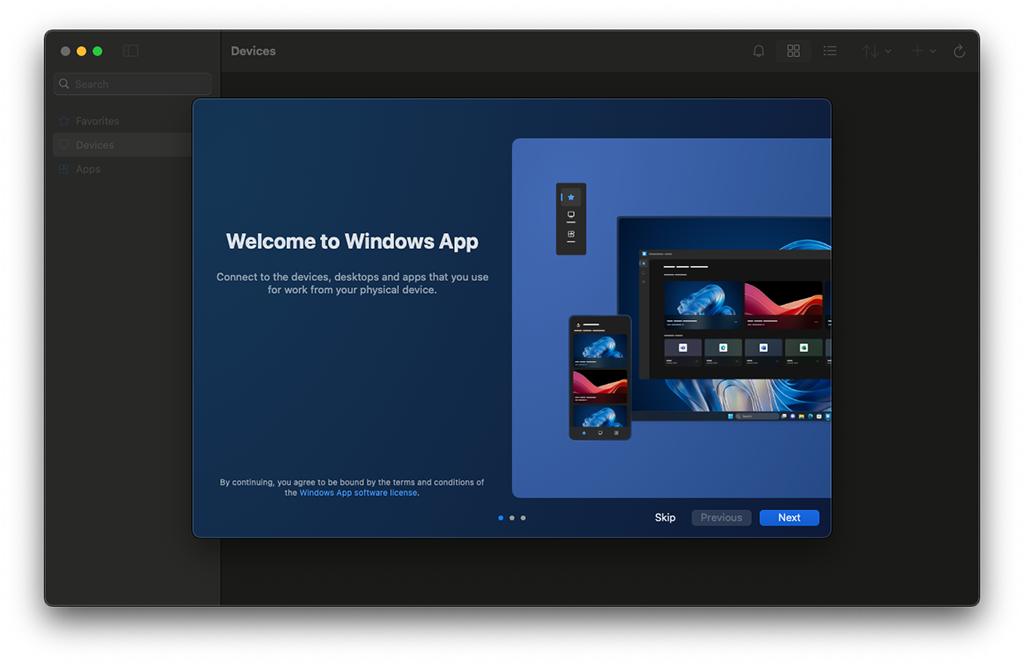
Welcome screen #1
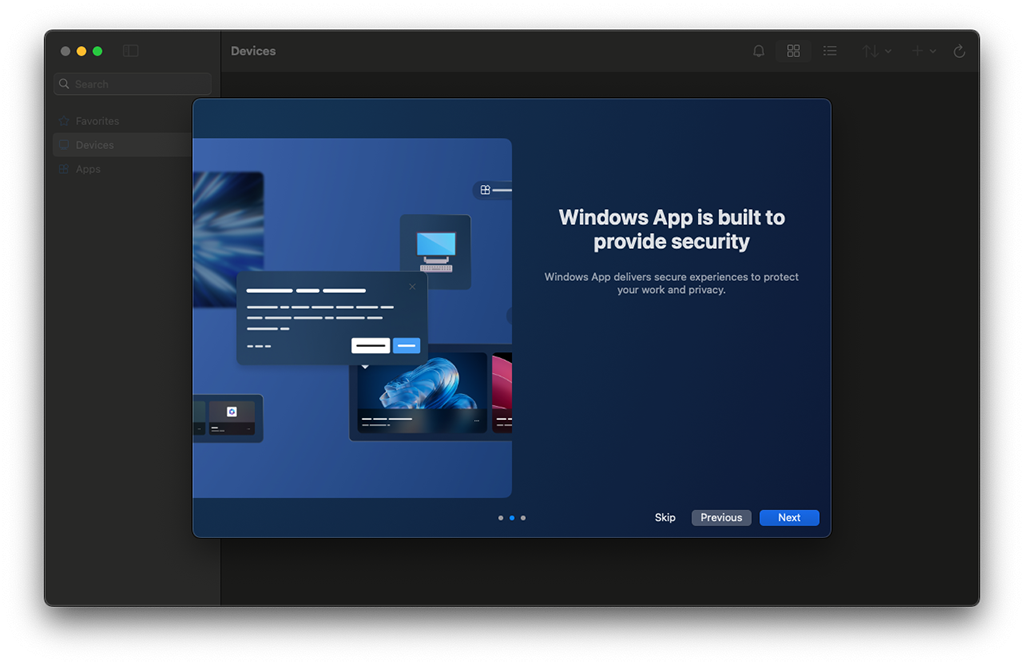
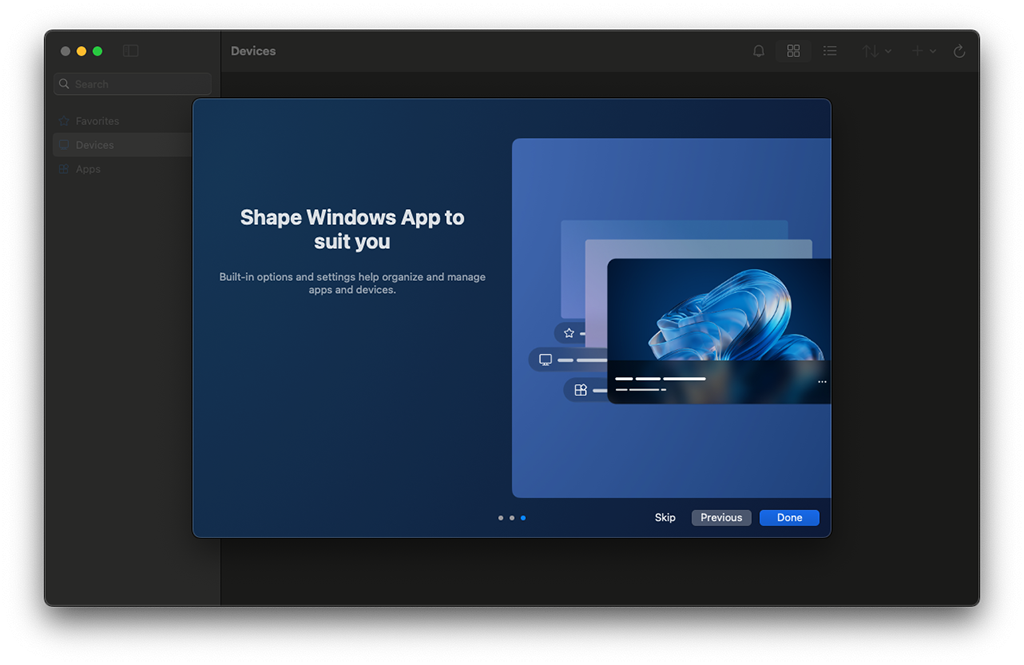
Click the Skip button to proceed to the Windows.app or you can click through the screens to learn more about the Windows.app.
Welcome screen #2
Welcome Screen #3
You are now in the Windows.app and will need to configure the Windows.app for use with our Microsoft Virtual Network
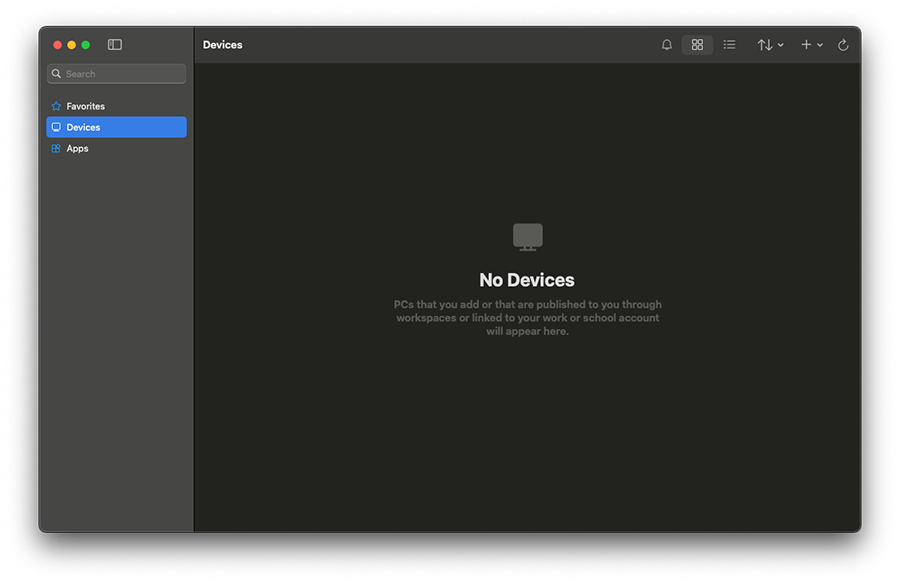
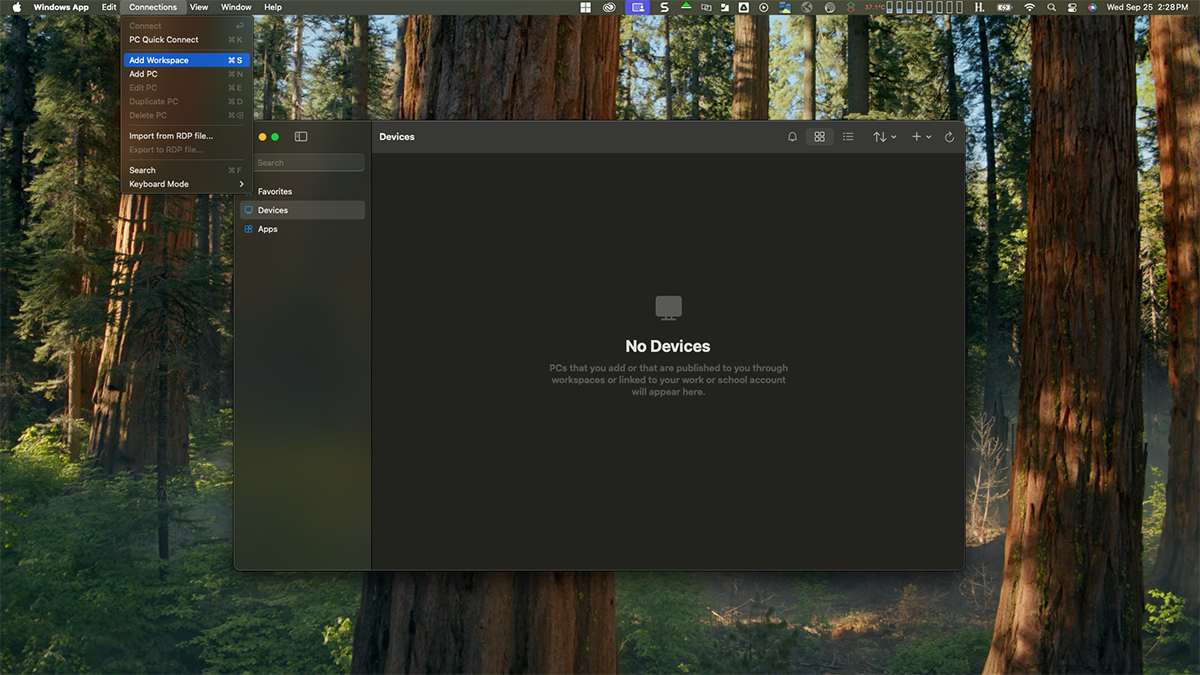
In the Connections pull down menu, select Add Workspace
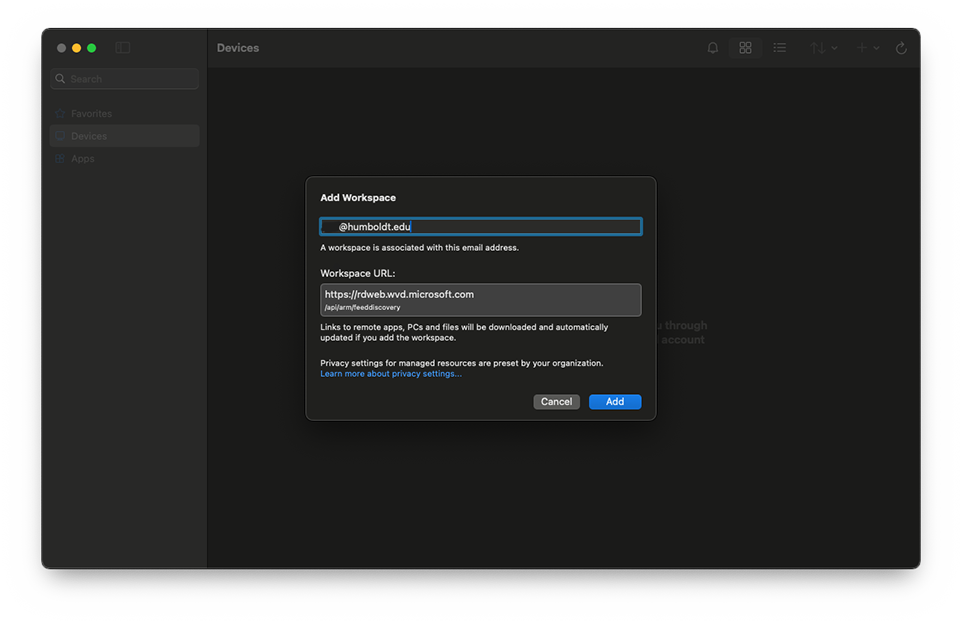
Type in your Humboldt e-mail address and click the Add button
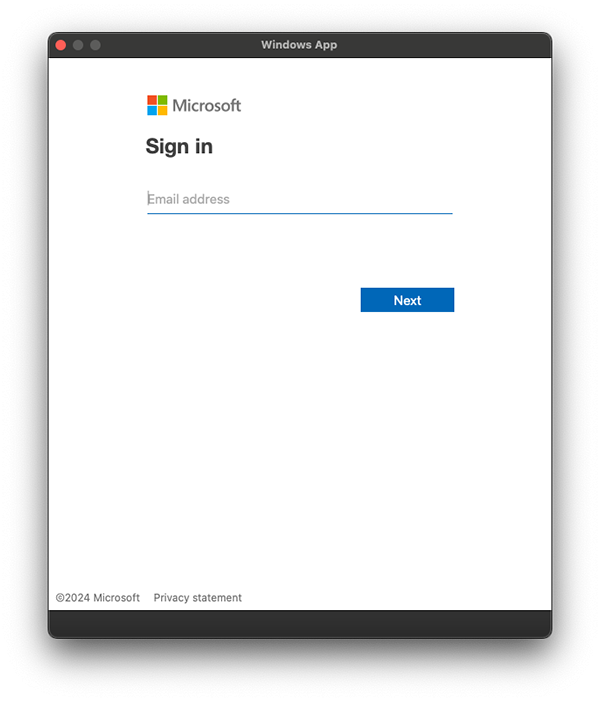
You have now been taken to the Microsoft sign in page. Type in your email address again
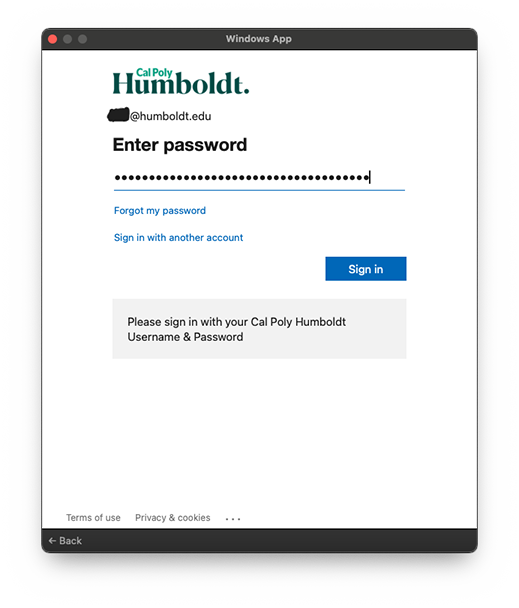
Type in your password:
Authenticate through DUO push on your phone
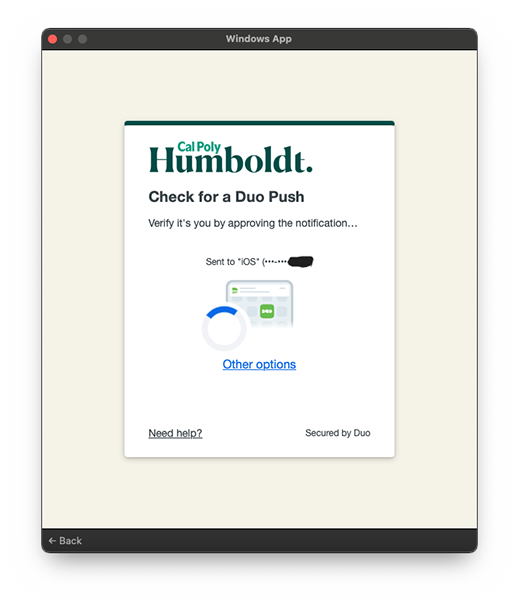
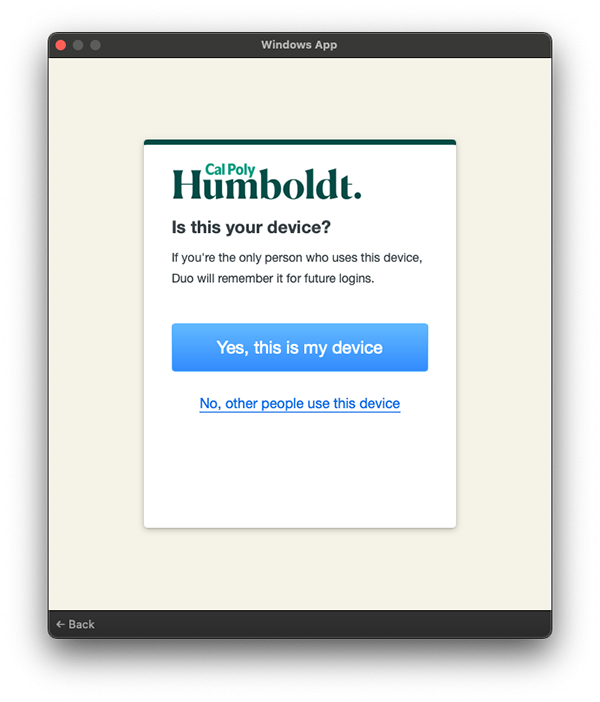
If this is your personal device or assigned to you through Humboldt, you can select Yes This is my device. If it is a shared device such as a lab Mac, select No, other people use this device.
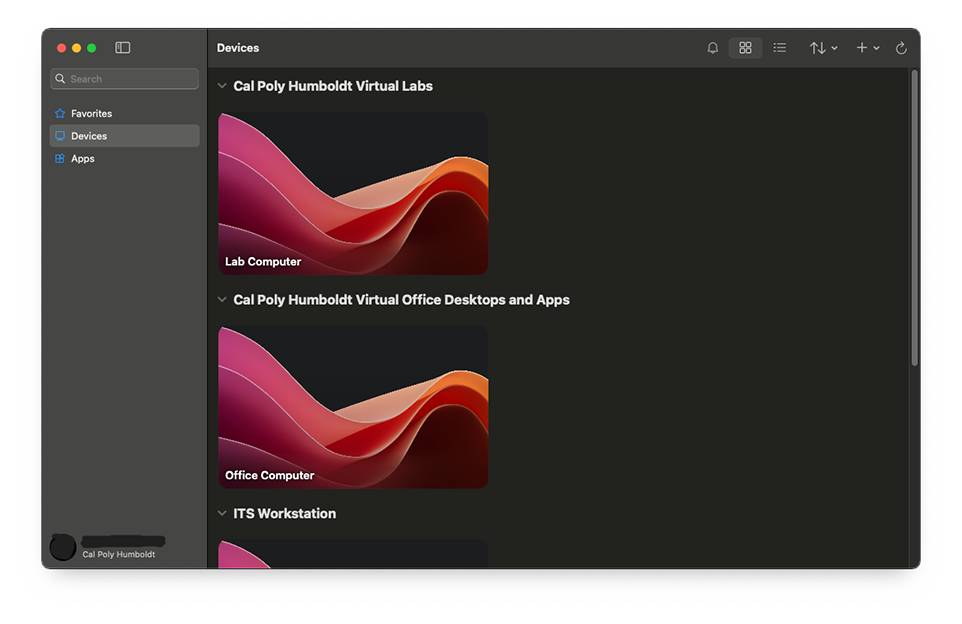
You will now have Humboldt services populated in the Devices and Apps navigation window:
How to Connect using Mobile Devices
You can also connect to Windows App through your cellular device. For Apple devices, use the App Store to download Windows App. For Android devices, use the Google Play Store to download the Windows App.