




Breadcrumb
GlobalProtect VPN For Personally Owned Computers
To create your GlobalProtect VPN connection follow the three-step instructions below.
- Step 1: Request GlobalProtect VPN & DUO Access
- Step 2: Configure DUO Multi-factor Authentication
- Step 3: Install GlobalProtect
Step 1: Request GlobalProtect VPN & DUO Access
- Visit my.humboldt.edu web page
Image

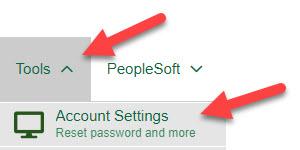
- Click Tools at the top of the page and then select Account Settings
Image
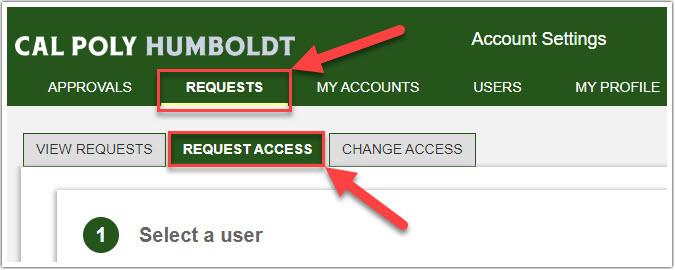
- Click Requests then Request Access tab
Image
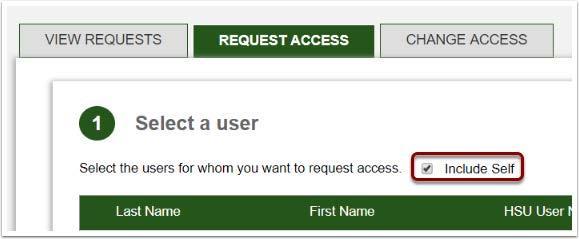
- In Section 1 - Select a user select the checkbox Include Self
Image
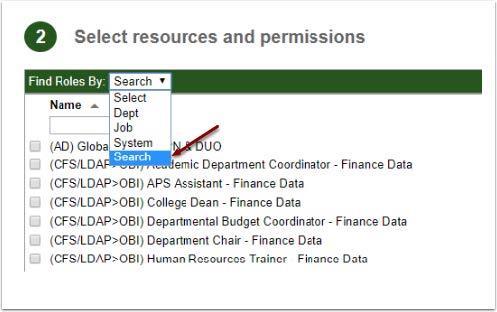
- In Section 2 - Select resources and permissions click the drop down arrow next to Find Roles By and click Search
Image
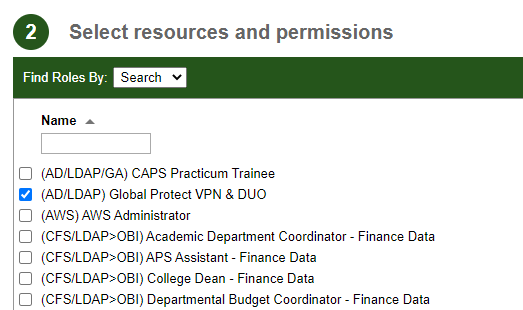
- Select the checkbox (AD/LDAP) GlobalProtect VPN & DUO
Image
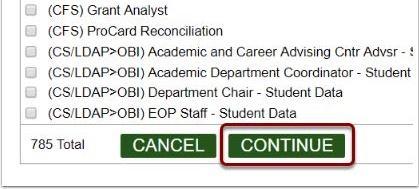
- Click the Continue button and skip to Section 5
Image
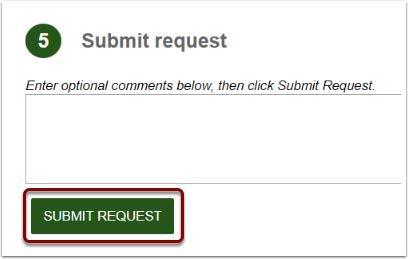
- In Section 5 - Submit request click the Submit Request button
Image
Global Protect will not work until the request has been approved. In most cases approval occurs within 15 minutes of the request submission.
Step 2: Configure DUO Multi-factor Authentication
DUO, CalPoly Humboldt’s multi-factor authentication tool, is used when connecting to the GlobalProtect VPN. Follow the link below to setup DUO on your mobile device:
Adding a Mobile Device to the CalPoly Humboldt Multi-factor Authentication System (DUO) Instructions
Step 3: Install GlobalProtect
Macs and Windows Computers
- Go to hum.link/vpn and enter your Cal Poly Humboldt computer credentials.
- Download the GlobalProtect agent that corresponds with your computer’s operating system.
- Run the agent that you downloaded and follow the instructions.
- You will be prompted for a Portal Address insert: gp.humboldt.edu
Chromebooks
If you need assistance with GlobalProtect submit a Help Desk support request (ticket) or call the Help Desk at (707) 826-4357.