


Breadcrumb
Special Collections Student Assistant Resources
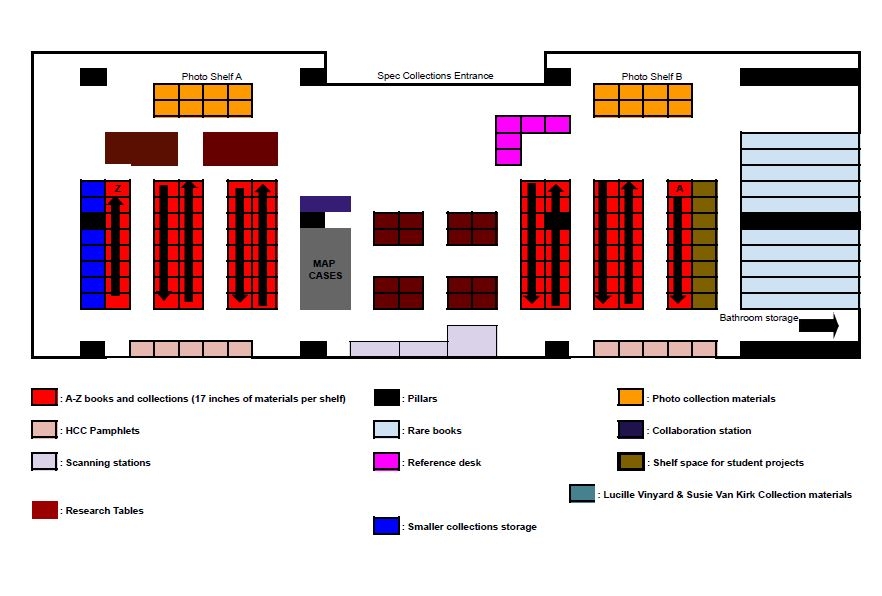
Tip of the semester: Only student assistant employees are allowed in storage spaces and the basement.
No friends or patrons. Thank you!
*Please limit personal device usage while on shift
Timeclock
Student Timeclock - MAKE SURE TO ENTER WHAT YOU DID DURING YOUR SHIFT in detail.
Content DM
Digital Commons
Scanning Instructions
Templates
Software
Other Links
Employee Resources
- DIRECT DEPOSIT FORM
- GREEN AND GOLD CALENDAR
- Social Media Guidelines
- Campus Disability Resources Center
Student Accomodations
Employee Accomodations
Special Collections Google Calendar for Shifts
- After a few weeks of knowing how your schedule will work we would like you to set a schedule for the rest of the semester that will remain fixed.
- We are pretty flexible when asked ahead of time, and of course for any finals/projects and school breaks and vacations.
- For absences like projects and vacations, let Sarah or Carly know as soon as you can, and (once added to the calendar) you will take your shifts off the calendar or switch them there.
- For sicknesses, email Sarah, and you will also take your shifts off the calendar.
- If something happens and you need to leave early or come in late, let us know and please also adjust your time on the calendar to reflect the approximate time you were here down to the 15 min mark.
- Please email Sarah before changing any calendar times.
- And if you forget to clock in or out, email Sarah as well, and let me know the time you got in/left so I can fix the timeclock.
Reference Desk Order of Operations
- Check for food or drink in hands - Kybosh
- "Please sign in. Thanks!"
- Note them in reference tracker
- "Is there a topic you are reasearching or something I can help you find?"
- Pamphlet Collection on topic first
- Search the site search bar (top right)
- Search photos or books from the grey box
- Set them up with the Collections List on the lg screen or their laptop
- Search CSU Scholarworks for Theses, download and have them look through citations at end also
EXHIBIT INSTRUCTIONS
Required materials:
-Google sheets (on phone or chromebook, you will need throughout process)
-Out cards
Steps:
Put “out card” in place of item you are taking
Pull item
Refer to spreadsheet:
Catalog item beginning with value “001” and fill in the following fields:
Description information: provide concise description of item, noting most obvious features like year, title/words, colors, size, type of material, etc.
Item location: Pamphlet file, Archive pamphlet file, Collection, Stacks, etc.
Note if you plan to use original or photocopy for display: This can be filled in later as you develop the exhibit but is good to note so everyone knows which items have dupes and which are original
On the “out card” write the assigned Item Number (e.g. “001”), with your name and date
Example Spreadsheet:
-Make a copy for individual exhibits
https://docs.google.com/spreadsheets/d/1Yxl15RrycBCShTZJbD6_LpD1-BYMqlaCX6jmbRzHGEQ/edit?gid=0#gid=0
Making Documents Accessible
 abbyy_accessibility_guide.pdf adobe_accesibility_guide.pdf