





Breadcrumb
Get Started with DesignPLUS
Video: Introducing the New DesignPLUS Sidebar
Important Things to Know About the Upgrade
To access the DesignPLUS sidebar, you must use a keyboard shortcut and follow the steps below:
- Go to any page in your course and click Edit
- Once the Rich Content Editor opens, click the rocket ship button on the right side of the screen to open DesignPLUS
- If DesignPLUS does not automatically launch, use the following keyboard shortcut to manually launch the sidebar:
Keyboard Shortcuts for Manually Launching the Sidebar After the Update:
| PC Keyboard Shortcut | MAC Keyboard Shortcut |
|---|---|
| Alt + Shift + D | Option + Shift + D |
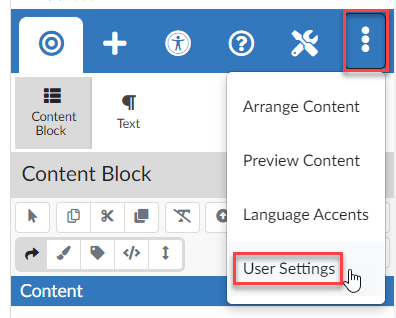
Once you launch the sidebar for the first time, be sure to edit the User Settings.
Doing so will allow you to open the sidebar automatically and turn on the lovely full set of DesignPLUS tools.
To edit your user settings, click the "More Options" kebab at the top right of the sidebar and select User Settings.
Select these settings:
- Automatically Launch Sidebar
- Show Launch button
- Enable all Advanced Tools (suggested)
- Enable Beta Tools (optional)
Page-by-Page
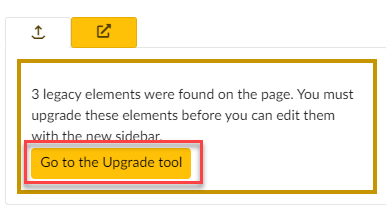
If you have created any content — a page, discussion, or assignment that provides you with the Canvas Rich Content Editor — in the legacy version and reuse it in DesignPLUS, you need to upgrade it. Upgrading allows back-end Cidi Labs code to resolve any differences in how content displays between the two versions.
In the bottom right corner, you will see a message to Go to the Upgrade tool. Click the yellow-background button and in the next screen, click the gray-background button to allow the back-end resolution.
Course-wide Upgrade
You may use the Course Upgrade tool, found in the Canvas course navigation Settings tool. It will review the whole course and alert you which type of items need to be individually upgraded. Then you can upgrade those items — in the example below, the next steps would be to click the green-background Review Items button.
Image 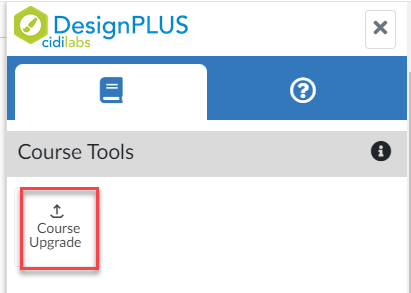 | Image 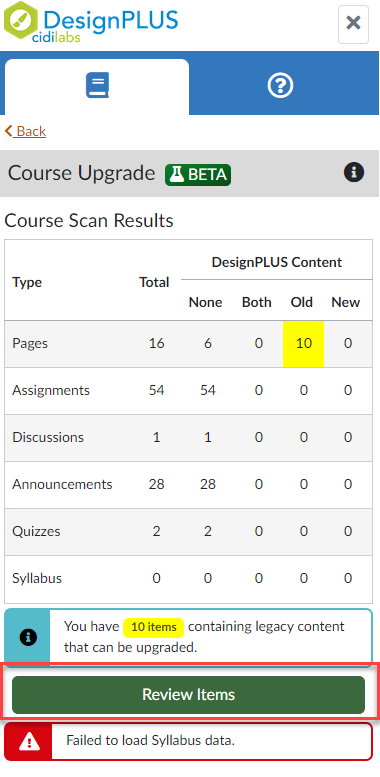 |
DesignPLUS Training Resources

Self-paced Canvas course
Getting Started With DesignPLUS
This course, created by instructional designers at the CTL, has information on everything you need to get started using DesignPLUS, including:
- How to start using the sidebar
- Using templated content
- Upgrading Design Tools content
- Navigating the sidebar to build new material
CidiLabs Resource
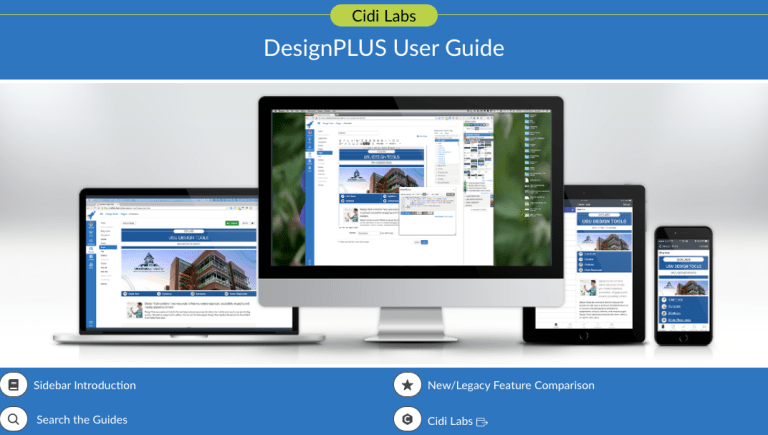
DesignPLUS User Guide
The DesignPLUS User Guide by CidiLabs is an excellent resource for getting to know the sidebar. This resource has videos, walkthroughs, and step by step instructions for all aspects of the sidebar. Select a link below to access some incredible resources, and get started using DesignPLUS!