





Breadcrumb
DARS Audit Student User Guide
Welcome to the DARS Audit Student User Guide. This guide helps you use the Degree Audit Reporting System (DARS) to track your academic progress, explore degree options, and plan for graduation.
1. Navigate to DARS
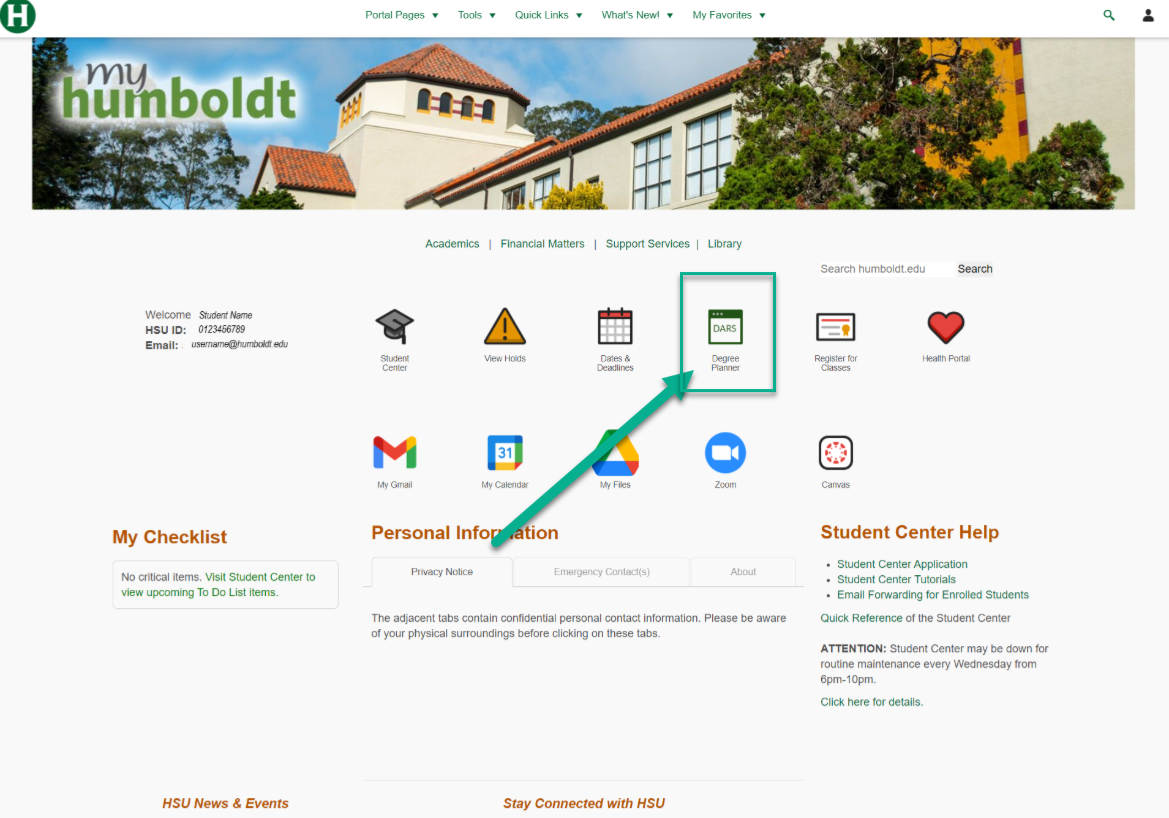
Go to myHumboldt. Click on View Degree Audit & Plan in Quick Links.
2. Select Your Style
If you prefer higher contrast, click the setting button on the right.

3. Choose Degree Program
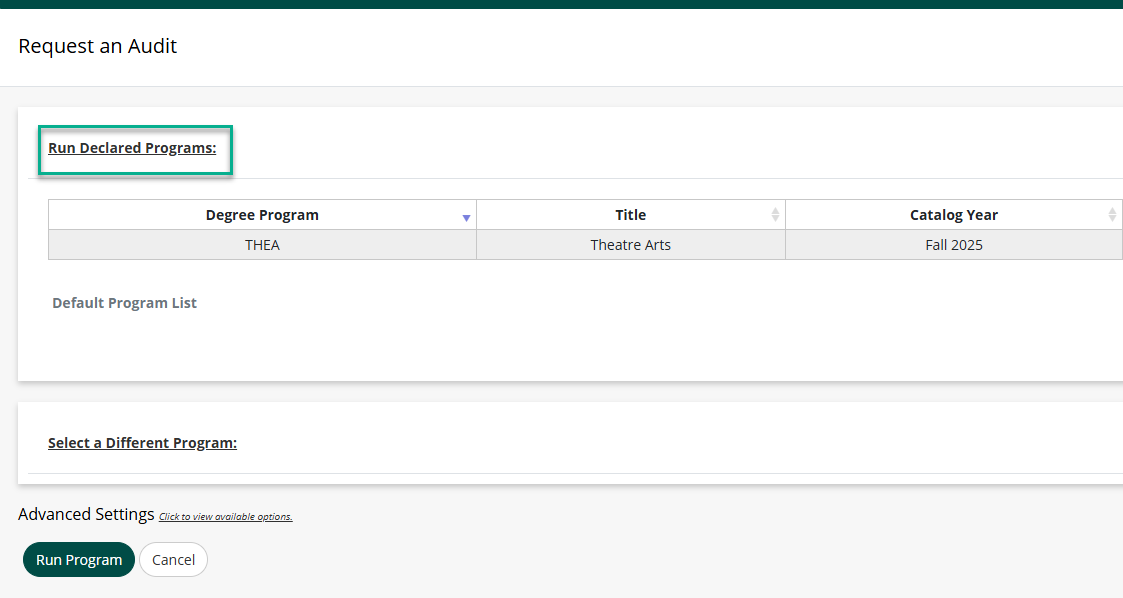
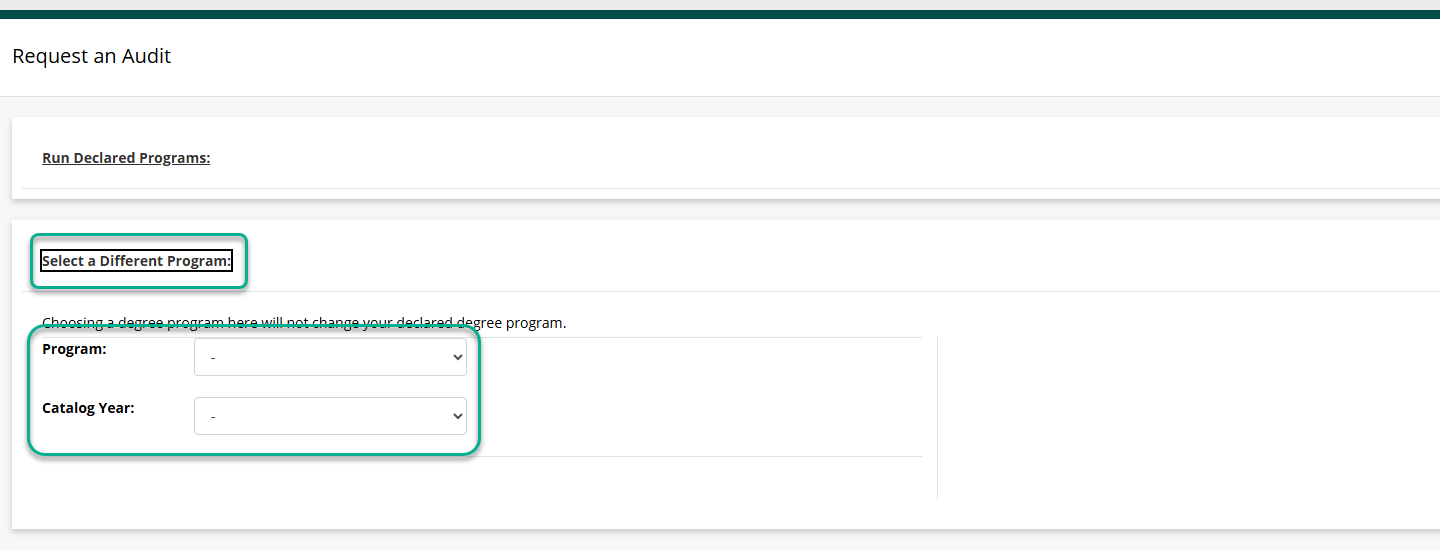
You can run an audit of your declared program (default option) or click on Select a Different Program to run a "what-if" audit. Use the "what-if" option if you are considering another major to learn how the courses you have taken will count toward the requirements. Select the program and catalog year from the dropdown fields. Note: choosing a different program here will not change your declared major at Humboldt.
4. Choose Format
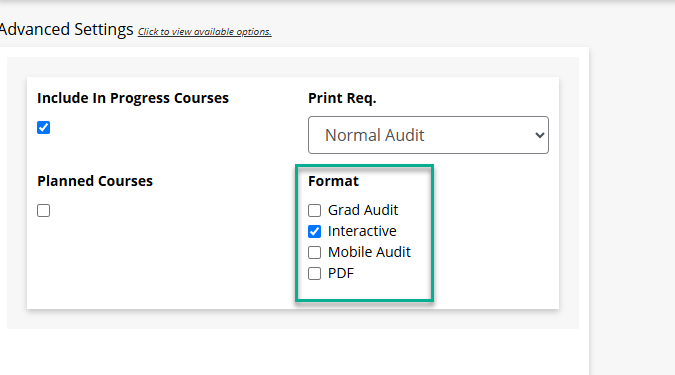
You may view your audit in an interactive, pdf, or mobile format. After you make your selection, click the Run Declared Program or Run Different Program button.
If you are considering schedule changes, uncheck the Include In Progress Courses box, to see an audit based on your completed courses only.
5. View Audit
Click on the View Audit button to open your audit.
Another page will open with your audit.
(A) In order to graduate, all requirements on DARS must be complete by your declared graduation date.
(B) Hover over the pie graphs for additional information.
(C) Click on a specific bar graph, such as Major Courses, to open more information.
(D) Click on an item in the legend, such as Unfulfilled, to drill down within the report.
Scroll down through the report to view each requirement.
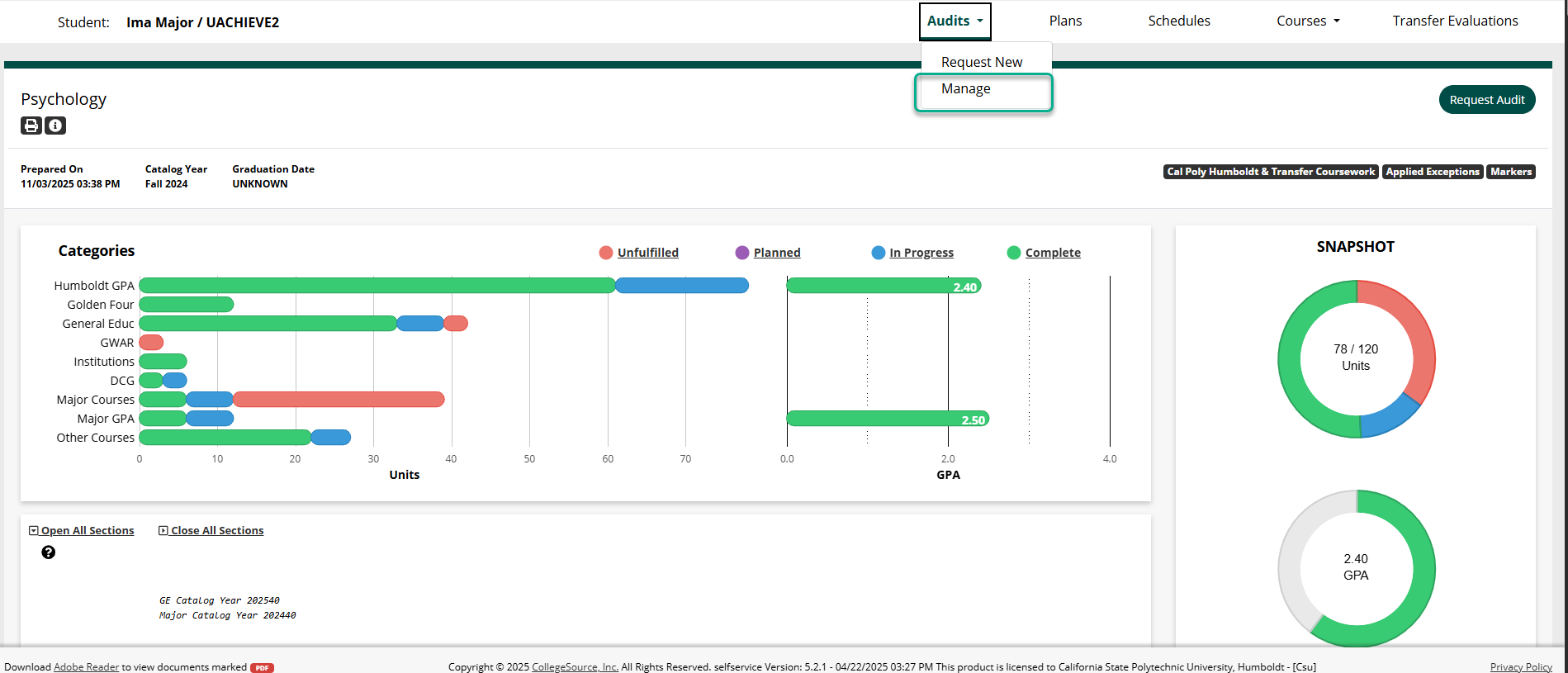
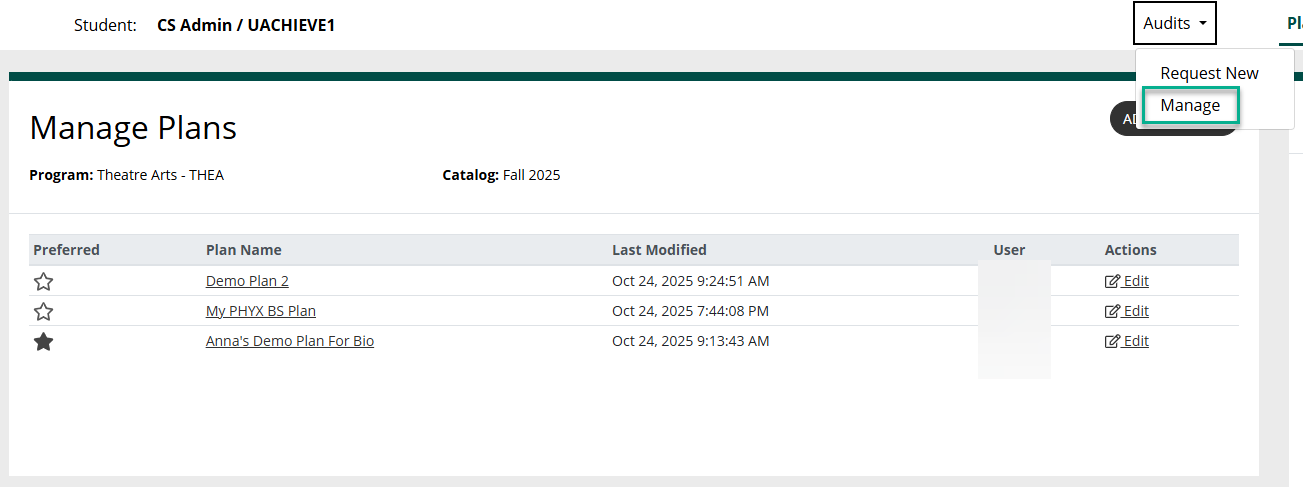
Note: Make sure you are in the Audit tab, NOT the Plans tab. There is an audit in Plan Builder, but it's not the regular Degree Audit. If you see Plan Builder, go back to the Audits tab. Select Manage.
6. Manage Audits
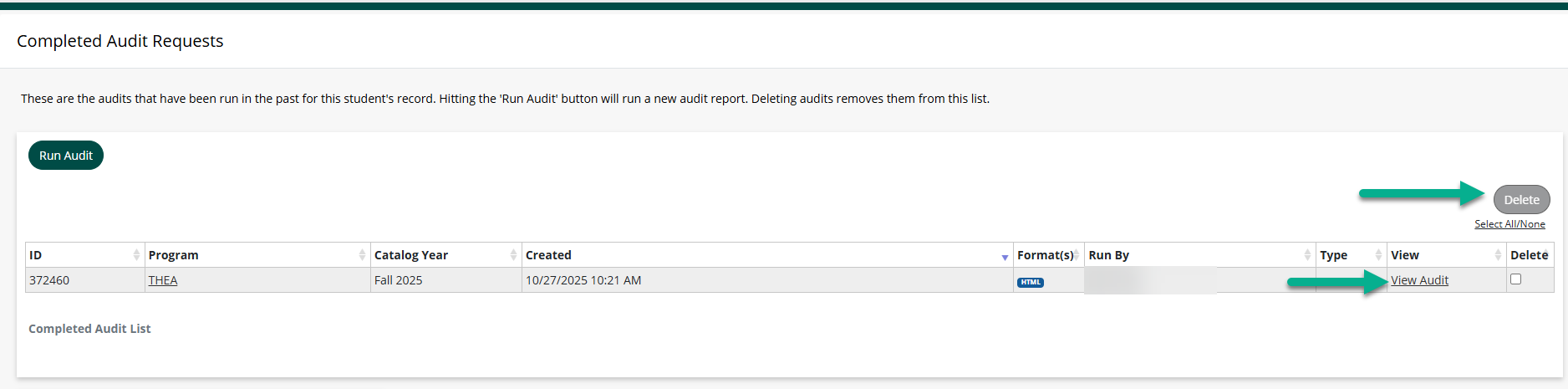
Click on Manage in the Audits menu to view previously run audits. If you click the Run Audit button, a new audit report will run.
To remove a previously run audit, check the box in the delete column and click the Delete button.
7. Log Out
Remember to Log Out when you are finished.

There are known accessibility barriers in the use of this product. While many issues have been corrected, improvement work continues. For assistance, please contact:
Office of the Registrar
(707) 826-4101
email: records@humboldt.edu
Academic & Career Advising Center
(707) 826-5225
email: advisingcenter@humboldt.edu