




Breadcrumb
DARS Schedules Student User Guide
DARS Schedules takes the classes you added to your degree plan and generates potential schedules. Choose the schedule that fits your personal and professional life.
Already created your DARS Degree Plan for next semester - Great!
You're ready to use DARS Schedules.
Step 1: Click on "Schedules" icon to push the classes you plan on taking into DARS Schedules . Hint: The semester needs to be open to see the calendar icon. Click the toggle arrow to open.
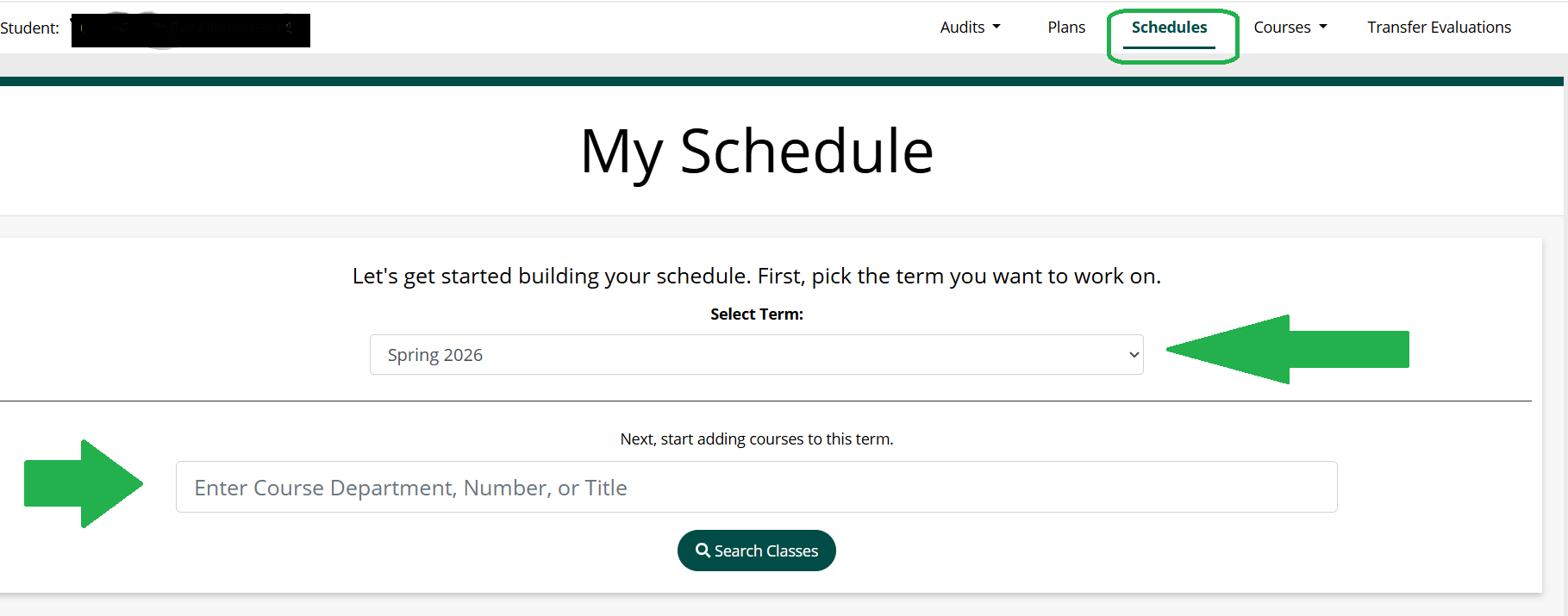
Step 2: On the schedules page, select the term you want to schedule. Next, you can either enter courses manually or select "search courses".
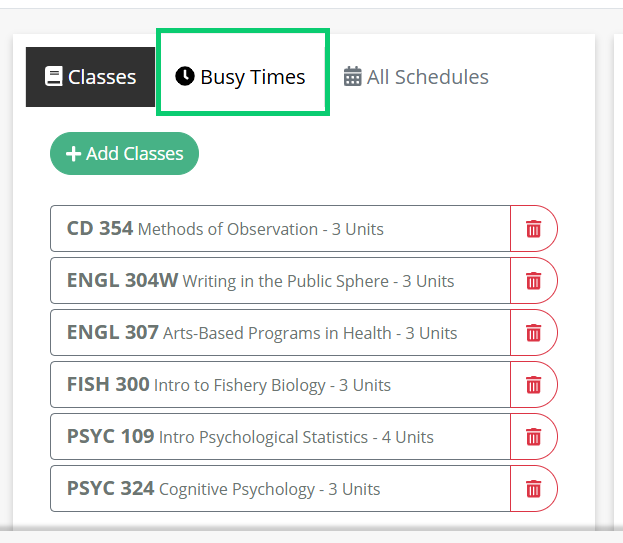
Step 3(Optional): You will see a message letting you know that the courses have been added to your cart. Click on the Busy Times button if you are NOT able to add classes.
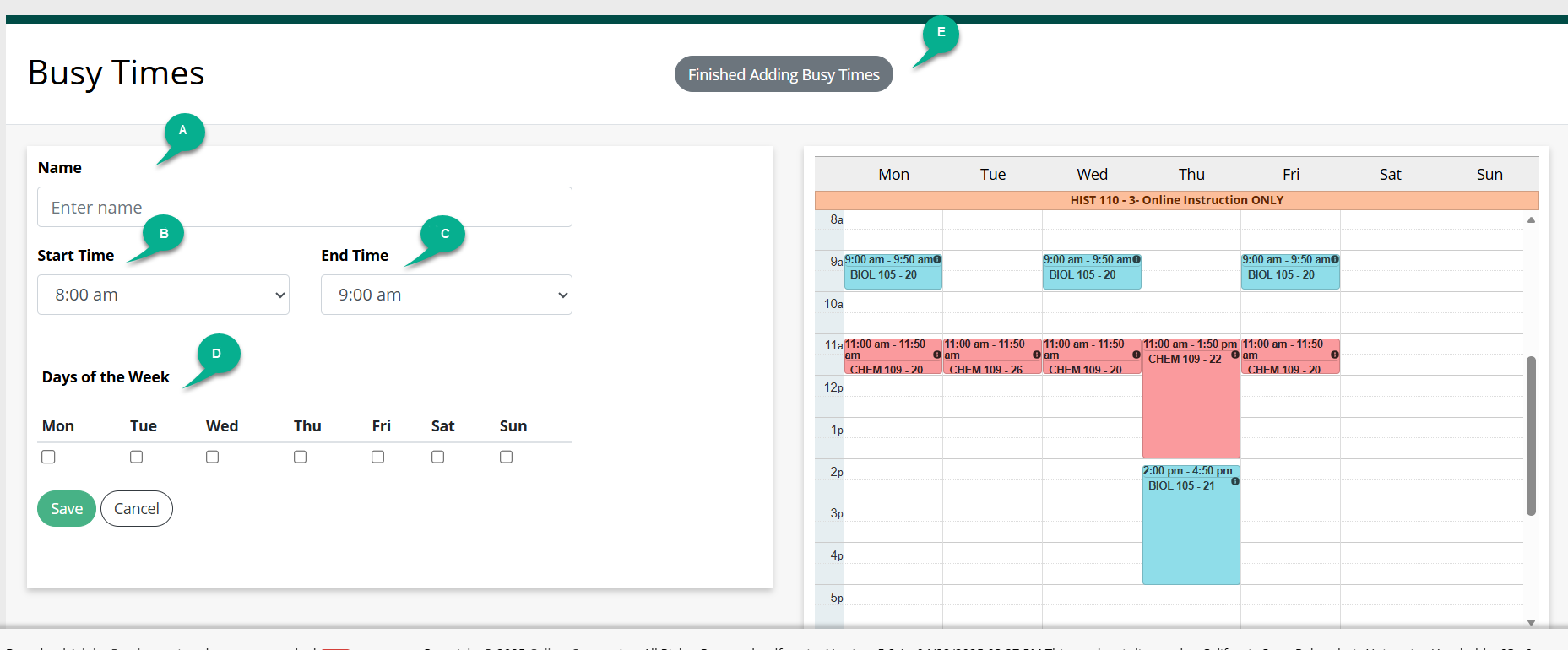
Step 4(Optional): Click on the Add Busy Times button to enter the times and days when you are NOT available to be in classes, such as work hours or a break for lunch. Hint: Click on save if you need to add another busy time.
A. Name the break or busy time
B. Select the start times for this break
C. Select the end times for this break
D. Select the days of the week for the break or busy time
E. Click finish adding Busy Times
Step 6: Click All Schedules button.
Step 7: Click the Auto-Generate button.
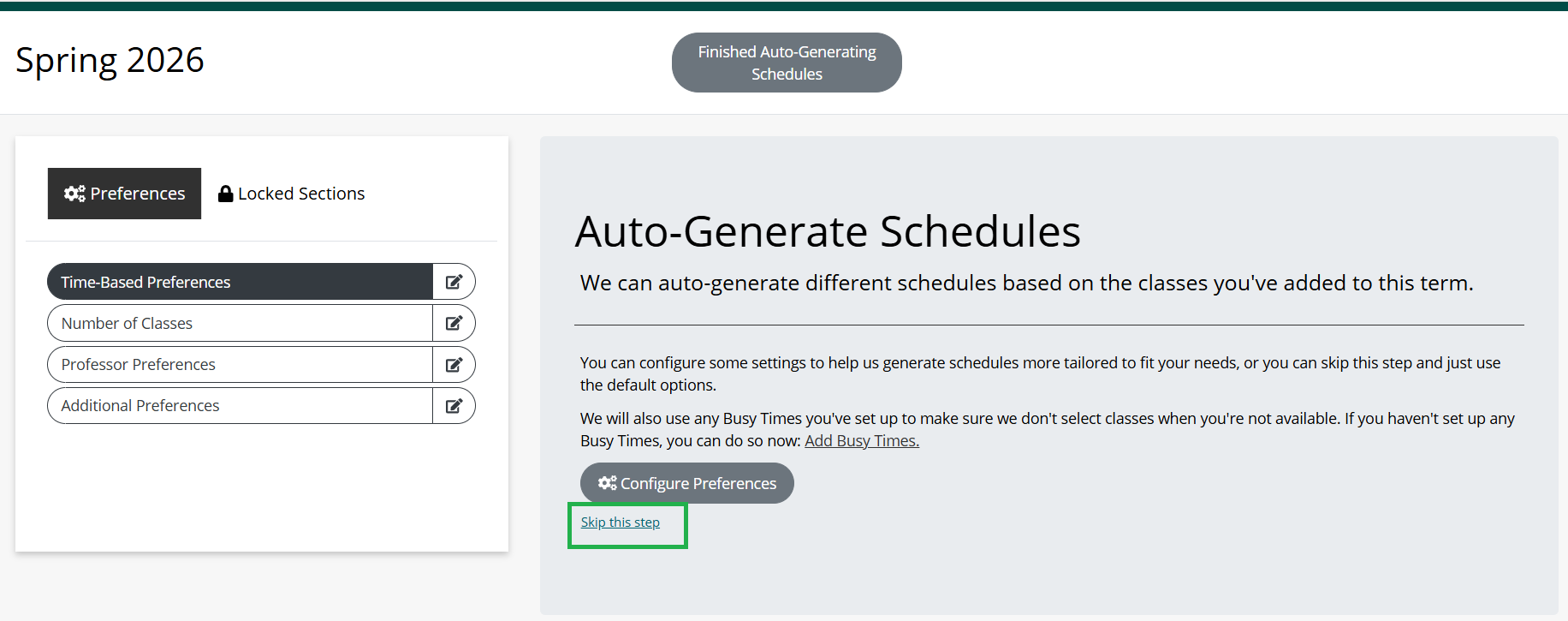
Step 8: To create schedule options now, click on Skip this step.
Hint: You have the option to add preferences, such as the times/days you want to be in class, preferred instructors, inclusion of classes with no open seats, and more. Learn how to add preferences to your DARS Scheduler.
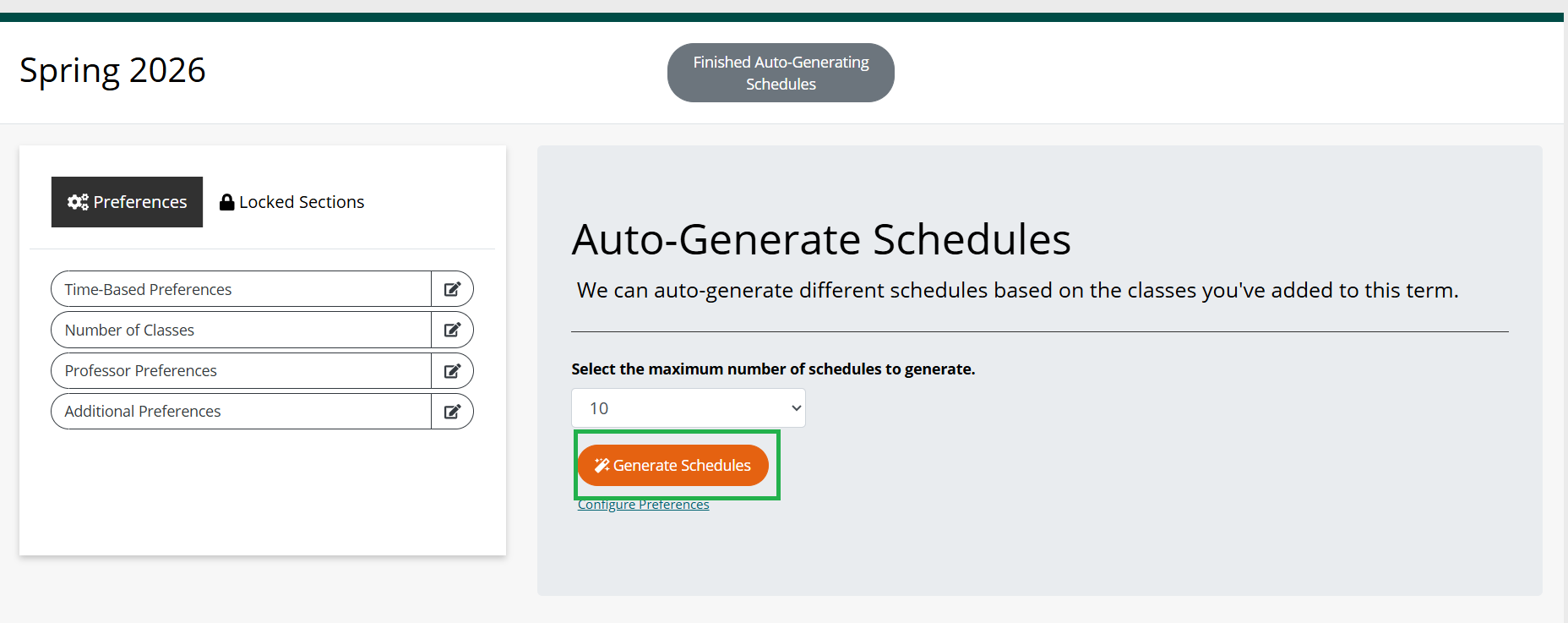
Step 9: Decide how many schedules you want DARS Scheduler to generate for your review. Click the Generate Schedules button.
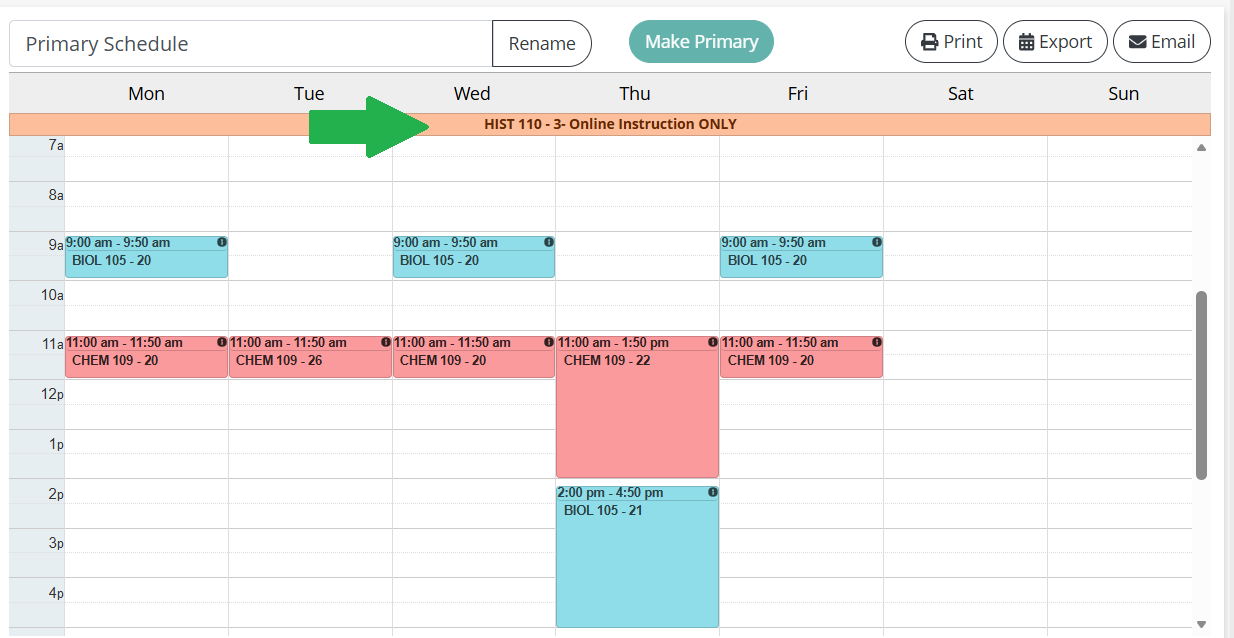
Step 10: Review the schedules to make sure you see all your classes. Online courses that do not have set meeting times (Virtual Asynchronous) will show at the top of the scheduler
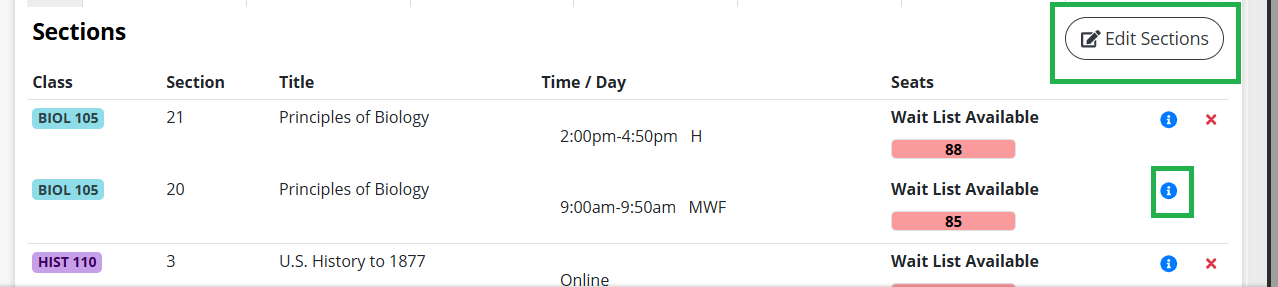
Step 11: Click on the Courses on scheduler to see more information. You can also edit courses by clicking "edit sections".
Save your primary schedule.
Step 12: When you find your best schedule, click on the Make Primary Button
Step 13: You can also rename your primary schedule. Enter the name of your choice, then press rename to change the name of your schedule.

Push you primary schedule into Student Center
Step 14: ONLY classes in your Primary Schedule can be added to your Student Center Shopping Cart (where you will complete your registration). Make sure that your preferred schedule appears in the Primary Schedule section as shown below.
Note: If you change your mind and decide to go with one of your backup schedules, click on the name of the backup schedule. The schedule details will display. Click the Make Primary button.
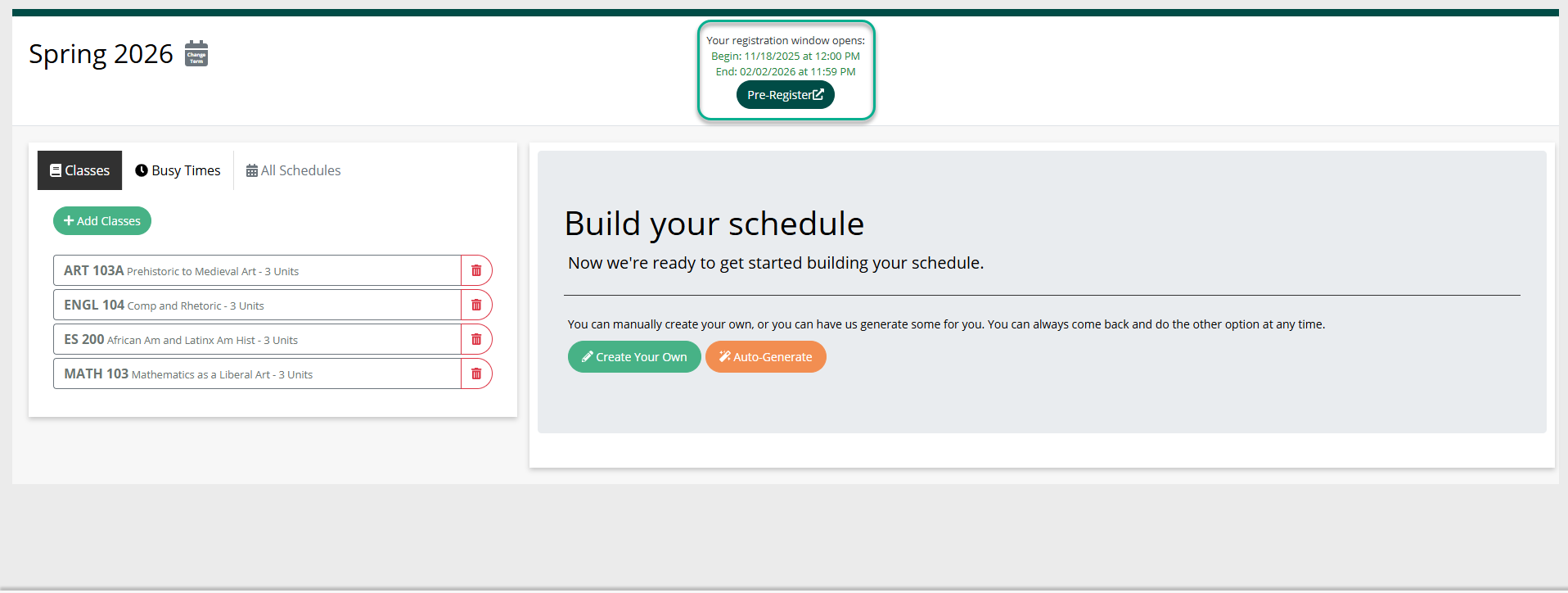
Step 15: Click the Pre-Register button to push your schedule from DARS Schedules into your Student Center Shopping Cart.
Your registration window needs to be OPEN in order to push your lasses to student center.
Step 16: After you pushed classes into your Student Center Shopping Cart and/or registered for other classes you can update your DARS Schedules with these classes by selecting the Sync w/ Reg Sys button
You will be redirected to your Student Center Shopping Cart.
Important: This is the last step in DARS Schedules, but you are not registered for classes. See Enroll in classes for the next steps in the process.
Caution: In some cases, after pushing your classes to the Student Center Shopping cart, the weekly/hourly view in DARS Schedules may no longer display all lab/lecture/activity components properly and in some cases the auto-generate feature may no longer recognize time conflicts.
After pushing your schedule to Student Center, if the schedule included any lab/activity/discussion sections, we recommend any additional edits to your schedule be completed within Student Center using the class search feature to avoid confusion. Contact the Office of the Registrar if you have any questions at records@humboldt.edu
There are known accessibility barriers in the use of this product. While many issues have been corrected, improvement work continues. For assistance, please contact:
Office of the Registrar
(707) 826-4101
email: records@humboldt.edu
Academic & Career Advising Center
(707) 826-3341
email: advising@humboldt.edu
For Faculty & Staff DARS tool see: Faculty Center Help