





Breadcrumb
Frequent Asked Questions
General Information
Employees will receive all the forms to fill out on their first day of hire. Benefits begin the first day of the month following an employee's appointment. For example, if somen is hired on May 5th, benefits will begin on June 1st if all the necessary paperwork has been returned to Human Resources.
To find a full listing of forms ranging from health benefit enrollment forms to Whistle blower Complaint Forms, please visit the Benefits Forms page on the Human Resources section.
Medical Coverage
Yes, Humboldt does offer couseling services for employees through the EAP program. These services are confidential and at no cost to the employee. To receive assistance please contact Paula Nedelcoff at 707-443-7358.
Vision Coverage, Retirement
If you enroll in the CSU Retiree Voluntary Vision Plan, you are required to maintain enrollment for a minimum period of 12 months. You will be required to maintain enrollment for the balance of the plan year in which you enroll and for 12 months in the following plan year, unless a permitting event occurs to change your enrollment. If you enroll in COBRA, you may continue coverage for up to 18 months.
Yes, benefits eligible retirees may continue coverage by enrolling in the CSU Retiree Voluntary Vision Plan or COBRA. Enrollment information is mailed to the retiree's home address.
The retiree plan has a three-tier monthly rate whereas COBRA has one composite premium rate for all enrollments. The retiree plan does not include the Vision Display Terminal (VDT) benefit. Otherwise the retiree plan benefits are comparable to the COBRA benefits.
The monthly premium will be fully paid by the enrolled retiree and deducted from their warrant issued by CalPERS.
Dental Coverage, Retirement
If your retirement date is within one pay period of your separation date from employment, coverage will be continuous. If your retirement date is more than one pay period and less than 120 days from your separation date from employment, contact HR Services for more information.
FlexCash participants may request dental coverage within 30 days before, or 60 days after the retirement date by contacting Human Resources at 707-826-5172. You also may enroll during the annual open enrollment period.
If you are currently enrolled in the DeltaCare Enhanced (HMO) plan your dental coverage as a retiree will be reduced to the DeltaCare Basic plan. If you are enrolled in the Delta Dental Enhanced Level II (PPO) plan your dental coverage as a retiree will be reduced to the Delta Dental Basic plan.
You can refuse enrollment in the basic dental coverage upon retirement and instead opt to continue your enhanced coverage under COBRA for up to eighteen (18) months. You pay the full cost for coverage under COBRA. Once COBRA ends, you can immediately enroll in a basic dental plan to avoid a lapse in coverage, or during any subsequent open enrollment period that follows the expiration date of COBRA coverage by contacting the CSU Chancellor’s Office for enrollment at (562) 951-4411.
Currently, CSU pays the full cost of the Basic level dental coverage for eligible retirees and their eligible dependents.
Wellness Program
To sign up for the Employee Wellness's Healthy-U Program, fill out the Humboldt release form and turn it into the Kinesiology Department in Forbes Complex 124.
An employee will have to pay for fitness classes and health services offered through the Employee Wellness Program. Please visit the Kinesiology website for the prices and details on sercies and classes ofered through the program.
The Employee Wellness Program is an on-campus program that incorporates exercise into the workplace. It works by allowing employees time to visit with the Kinesiology and Recreation departments to exercise and learn about keeping fit. Employees are also eligible to register in an array of exercise classes offered throughout the semester. The Employee Wellness Program also offers staff different health services such as the body composition analysis and aerobic fitness assessment.
e-Benefits
To facilitate your open enrollment changes, Employee Self Service e-Benefits is available 24/7. e-Benefits automates and simplifies the process of managingyour benefit elections while reducing paper usage.
At any time of year you can find your benefits summary on the MyHumboldt portal by clicking View Paycheck and Benefits, then View Benefit.
You can log in to e-Benefits from any computer with Internet access beginning during Open Enrollment. Once logged into MyHumboldt, navigate to the Open Enrollment link on the main page.
Employees will need to have access to PeopleSoft’s HR Center and fill out/sign the e-Benefits electronic signature form.
Please reach out to benefits staff at benefits@humboldt.edu if you change your mind about your elections while still in the Open Enrollment period. Submitted elections will be finalized once Open Enrollment closes and cannot be changes after that time
Professional Development
Yes, the CSU offers online professional development courses to all employees for free through our online portal, Skillport. To learn more and find , please visit Humboldt's training site at https://training.humboldt.edu
Yes, there are live and online classes that cover a wide range of topics including PeopleSoft, Human Resources, Data Warehouse/Hyperion, Environmental Health and Safety, Student Disability, Web Development and more. These live classes are scheduled in advance and can be viewed at the Training and Professional Development site.
We also have access to thousands of courses, certifications, and other resources on our learning portal, Skillport. Please visit the Training and Professional Development site where you will find a direct link to Skillport.
Medical Coverage, Retirement
Yes. You may change your medical plan and add/delete dependents by contacting CalPERS at (888) 225-7377 during the annual CalPERS Open Enrollment period or within 60 days of a qualifying status change.
If you retire less than 30 days after your separation date from employment, your medical coverage will continue automatically. If you retire between 30 and 120 days after your separation date from employment, contact Human Resources for more information.
You may request coverage within 30 days before or after your retirement date. To enroll before your retirement date, contact HR Benefits. To enroll after your retirement date, contact CalPERS at (888) 225-7377. If you do not enroll within 30 days before or after your retirement date, you must wait until the next annual CalPERS Open Enrollment period to enroll unless you experience a qualifying status change.
As a CalPERS retiree, you and/or your dependents must enroll in Medicare Part B when your reach age 65.
Do not enroll in Medicare Part D as you already have a CalPERS prescription drug plan. If you enroll in Medicare Part D, your CalPERS health plan will be canceled until you are dis-enrolled.
You and your dependents must certify your Medicare status with CalPERS when you each become eligible for Medicare and change from the Basic medical plan to a supplemental to Medicare or Managed Medicare plan at that time. Contact CalPERS at (888) 225-7377 to change your plan.
The cost to the retiree for medical coverage will depend on which plan and the level of coverage the retiree chooses.
Eligible dependents include spouse, domestic partner, children under age 26, and disabled children over age 26. Certain restrictions apply.
You and your dependents remain in the Basic medical plan until you and/or your dependents become eligible for Medicare.
General Information, Retirement
No. You must retire within 120 days of your separation from employment; have been eligible for enrollment in a CalPERS medical plan (or flex cash) on your date of separation; and receive a retirement allowance from CalPERS.
The selection of your retirement date is one of the most important decisions to make when planning your retirement.
- The first factor to consider is the calculation of service credit. Based on full time employment, you earn a full year of service credit when you have worked for 10 months during a fiscal year (calculation is prorated for part time service). If you are appointed less than full time you will continue to accrue service credit up to 12 months. You may only accrue up to 1.0 service credit per fiscal year. Any unused sick leave may be converted to service credit (2,000 hours equals one year).
- The second factor to consider is your age. The calculation of the age factor for your retirement benefit increases each quarter year from your birthday at age 50 or 52, depending on your retirement tier. The benefit factor will remain constant at age 63 or 67, again depending on your retirement tier. Please see the retirement tier charts at www.calpers.ca.gov
- The third factor affecting your retirement benefit is average salary, computed on the basis of your highest 12 months of earned salary (36 months if hired after January 2011). The amount of salary will be reduced by a Social Security factor. (Final compensation minus $133.33)
- Another aspect of choosing a retirement date is the following:
Do you want to retire mid-semester, the end of the academic year, the end of the calendar year, the end of the fiscal year, the end of the pay cycle, or on your birthday? Whether you are staff or instructional faculty will also have a bearing on your decision.
For example:- Staff employees will typically retire at an age quarter (usually the end of a pay cycle) or the end of the calendar year. 1
- Faculty will generally retire at the end of the spring semester or academic year (depending on an age quarter).
This decision is a personal decision you will have to make. Each date will result in varying estimate calculations.
To create a retirement estimate based on the factors of service, age and salary, see the CalPERS retirement calculator at: http://www.calpers.ca.gov and go to “online calculator”. For a more comprehensive estimate, employees are encouraged to register for a MyCalPERS account which is a secure self-service website where you may access real-time details and balances of your individual CalPERS accounts.
No, if you meet the criteria above, you receive 100% of the state's share of your health benefit premium.
Medical, dental and vision coverage can continue into retirement for eligible employees and their eligible dependents. CSU-paid life insurance (if applicable) does not continue into retirement. Retirees are provided the option to convert the life insurance to an individual policy. CSU-paid LTD insurance (if applicable) ends upon separation from employment.
You will continue to pay federal and state taxes. Social Security taxes and your contribution to CalPERS stop at retirement. You may be required to pay the Medicare tax of 1.45% of your gross retirement pay. Determining your taxation at retirement is a complex issue. You may contact CalPERS or request the booklet, "Taxation and Your Retirement" from CalPERS at www.calpers.ca.gov , or consult your tax advisor.
Employees in the retirement tiers of State Miscellaneous, 2%@55 or 2%@60, may retire with five years of CalPERS service at age 50 years or older. Employees in the new retirement benefit tier of State Miscellaneous, 2%@62, may retire with five years of CalPERS service at age 52 or older. Please access link for detailed information for retirement tiers:
Vacation Balance, Retirement
Your vacation balance can be paid to you in a lump sum upon retirement. Employees may request to use all or part of their vacation accruals prior to their retirement date. However, please note the use of vacation time must be authorized by the manager, even if directly preceding a service retirement.
Employees who separate from employment who are otherwise eligible to cash out their vacation balance may choose to transfer a designated amount from their lump-sum separation pay into an existing Tax Deferred Retirement Savings Account (401(k)/ 403(b) and 457 plan account).
If you choose to transfer an amount into a Tax Deferred account, you will need to complete a Request to Transfer Lump-Sum Separation Pay Application and submit to the Payroll Office prior to your retirement date. Copies of the application can be obtained in the Benefits Office.
Onboarding
Yes, they do need to fill this out. This helps identify if an employee has been in the PERS retirement system. However, a Bridge job classification by nature is not eligible for PERS but often times these sign-ups are used should the employee apply for a future position on campus; so the forms should be as complete as possible.
Bridge student workers are exempt from paying into social security but they are required to pay into the Part-Time, Seasonal & Temporary Retirement @ 7.5% and they are required to pay into Medicare @ 1.45%. For additional information on the Part-Time, Seasonal & Temporary Retirement Plan, please see the Savings Plus Benefits Payment Booklet and the Savings Plus Program website.
Currently, Payroll's practice is to notify the department whose hours fell at the end of the week puting the employee in the overtime situation. Kin d of a "last in approach"
Students must be enrolled in the fall 2023 semester for a minimum of 6 units (undergrad) or 4.5 units (grad). Seniors who will be graduating spring 2023 may work one final Bridge appointment for summer 2023 but must be separated by August 1, 2023.
Equal Opportunity and Compliance
Yes, there are accommodations available for employees with disabilities. To make a request please contact your Department Chair. The Department Chair will then contact the Faculty Personnel Services Office for support in providing possible accommodations.
If you feel that you are been harassed in the workplace, please contact...
To file a complaint, you may contact Suzanne Pasztor sp49@humboldt.edu, extension 3643 or Dale Oliver dale.oliver@humboldt.edu, extension 4921 with information regarding your concern. Any information provided will be kept confidential and it is used to assist staff and faculty with any questions they may have regarding discrimination.
If you want to file a formal complaint, you may contact Scott M. Kasper scott.kasper@humboldt.edu, extension 5174.
Recruitment
You only have to track and send acknowledgements to new applicants to your Temporary Faculty Pool – those who complete the Application for Lecturer Appointment form. You do not have to send out emails or enter on the Applicant Log any incumbent lecturers who request continued employment – those who fill out a Request for Subsequent Lecturer Appointment form.
The Request for Subsequent Lecturer Appointment form is a communication tool between the lecturer and the department. We encourage all incumbent lecturers to complete the form and supply the information the department needs to make course assignments for the next year. For continuing three-year lecturers, filling out the form is not required to maintain their appointment, but it is an easy way to provide the necessary information to the department.
The recruitment cycle looks like this:
- A new applicant applies to the pool.
- You enter him/her on the Applicant Log for that year and send out an acknowledgement email.
- If the applicant is hired, s/he becomes an incumbent lecturer, and would complete a Request for Subsequent Appointment in the following academic year.
- Because s/he has already been logged previously as a new applicant, the department does not enter him/her on the log or send an acknowledgement email.
- If the applicant is not hired, the department must keep the application on file for 2 more years.
- Again, since s/he has already been logged as new applicant, the department does not need to do so again.
- If, after the 3rd year, the applicant has not been hired, s/he would have to complete a new application to remain in the pool. ...And the process would start over again.
- If the applicant is hired, s/he becomes an incumbent lecturer, and would complete a Request for Subsequent Appointment in the following academic year.
The process guide (with mail-merge instructions for Microsoft Word 2007 and 2010), along with the sample acknowledgement email and the spreadsheet template are available at the bottom of the Temporary Faculty Unit Employee Pool Recruitment page.
If the lecturer taught in the previous academic year – either one or both semesters - and/or has a three- year appointment, he/she is considered an incumbent lecturer.
Anyone who is interested in teaching during the upcoming academic year, who is not an incumbent (current) lecturer.
Any incumbent lecturer who wants to communicate interest in teaching during the upcoming academic year.
Compensation and Classification
CSUEU employees (Units 2, 5, 7 and 9), CFA employees (Unit 3) and SETC employees (Unit 6) have provisions in their Collective Bargaining Agreements to appeal the result of a Classification Review. Please refer to your Collective Bargaining Agreement for specific details regarding the process and timelines for appeal.
How long does it take to receive confirmation of the outcome of a request for Classification Review?
Requests for Classification Review are handled in the order that they are received. Employees can expect to receive a written response detailing the outcome of the review from Human Resources within one hundred and eighty (180) days from the time the request is received in Human Resources.
Requests for In-Range Progression are reviewed in the order that they are received. Employees can expect to receive a written response detailing the outcome of the review from Human Resources within ninety (90) days from the time the request is received in Human Resources.
A Classification Review can be requested by the employee every twelve (12) months. An appropriate administrator can request a Classification Review on an employee's behalf at any time.
An In-Range progression can be requested by the employee every twelve (12) months. An appropriate administrator can request an In-Range progression on an employee's behalf at any time.
Most collective bargaining agreements have provisions for the frequency with which position descriptions should be reviewed and updated. In the absence of these provisions, Human Resources recommends that position descriptions be reviewed and updated when a position is vacated and reviewed for recruitment or annually for occupied positions as part of employee performance evaluation process.
If an employee's position is reclassified to a classification whose minimum salary is greater than the minimum salary of the previous classification, then the employee will receive the new base salary of the higher classification, or, a minimum of five (5) percent increase to their base salary.
In most cases, the effective date of the In-Range Progression will be the first day of the pay period following receipt of the request in Human Resources. For example: If a request is received by Human Resources on January 11, 2017 the effective date would be February 1, 2017 which corresponds to the first day of the pay period for February 2017.
An In-Range Progression is a change in salary within the employee's current classification salary range based on specific criteria defined in the employee's Collective Bargaining Agreement.
A Reclassification is appropriate when a position has changed significantly so as to justify a change in classification. Classifications are defined in the CSU Classification Standards.
In-Classification Progression is appropriate for classifications with defined skill levels or ranges when a position has changed significantly so as to justify progression to the next skill level or range. For example: Progression from Information Technology Consultant – Foundation Level to Information Technology Consultant – Career Level.
Please refer to your collective bargaining agreement for specific criteria related to stipends. Some of the more common criteria for stipends include temporary project coordination or lead work functions, additional work or special project, special assignments and POST certification.
A position description update should be requested any time there is a significant change to a position. This could include changes to the position summary, essential job functions, reporting structure (org chart) or working conditions.
A position description update can be submitted by an employee or by the appropriate administrator. Any changes to a position description will need to be approved by the immediate supervisor and appropriate administrator(s).
Stipends are typically requested by the appropriate administrator on an employee's behalf. The criteria and provisions for stipends vary widely by bargaining unit. Please refer to your collective bargaining agreement to determine if you are eligible to receive a stipend and the specific criteria governing stipends for your unit.
In most cases, a request for In-Range Progression will be submitted to Human Resources by the appropriate administrator for the department submitting the request. However, UAPD Employees (Unit 1), CSUEU employees (Units 2, 5, 7 and 9) and APC employees (Unit 4) have provisions in their Collective Bargaining Agreements that allow for employee-initiated requests for In-Range Progression. Please refer to your Collective Bargaining Agreement for further details.
Payroll
A paper absence sheet will need to be submitted through December 2012 in addition to electronic submission of absences. After that, a paper absence sheet is still needed for certain circumstances such as:
- Reporting a dock by the 15th of the month to avoid overpayment,
- Special leaves being coordinated through the Employee Leaves or Workers’ Compensation programs,
- When adding an absence to a finalized prior period where “No Leave Taken”was initially reported, or
- When deleting an absence from a finalized prior period.
- Academic Year (AY) faculty leave/absence reporting.
- Intermittent Employees Reporting hours worked.
The status of an absence can be seen through “Report Time > Manager Absence Entry.”
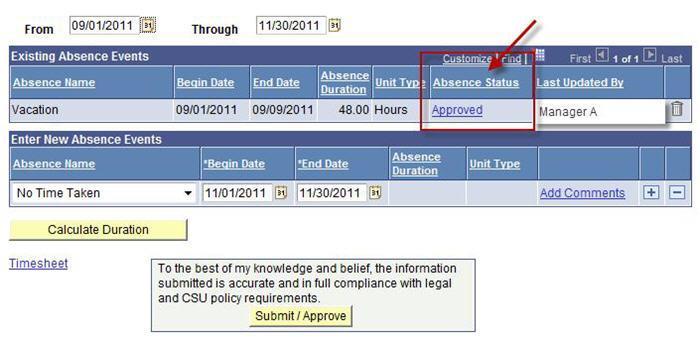
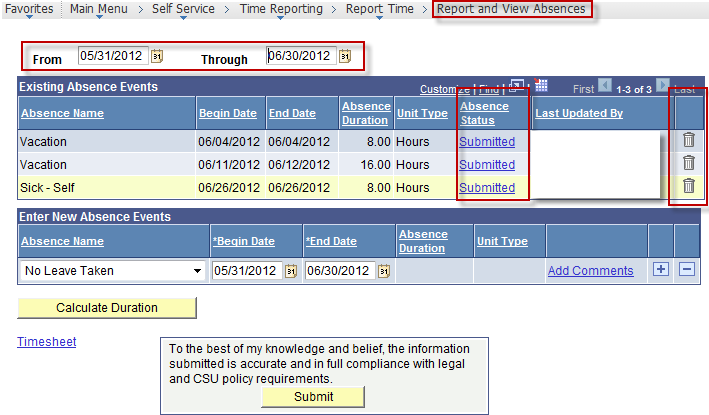
An employee can correct an absence up to the point when the supervisor approves the absence. Simply delete the entry using the trash can symbol. If the supervisor has already approved then the supervisor must delete. When in “Report and View Absences,” make sure that the “From” and “Through” dates are appropriate for the period you are reviewing. Click on the “Absence Status” hyperlink for “Existing Absence Events” to see details about the status.
- Through AMSS when adding an absence to a period where other absences exit.
- Submit a “Correcting” paper absence sheet that represents all time for the absence period when:
- adding an absence to a period where “No Leave Taken” was used
- trying to delete an absence once the “Absence Status” has changed to“Finalized”
The status of a reported absence can be seen through “Report and View Absences.”Detailed Timekeeper instructions are located in the Timekeeper guide.
When in “Report and View Absences,” make sure that the “From” and “Through”dates are appropriate for the period you are reviewing. Click on the “Absence Status” hyperlink for “Existing Absence Events” to see details about the status. Every status changes is time stamped and recorded including the supervisor approval of an absence. See the screen shot above.
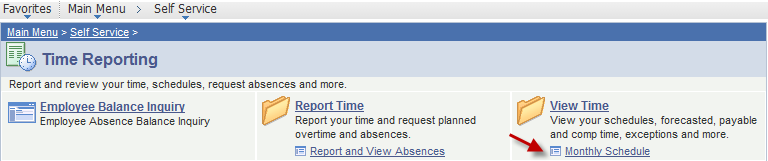
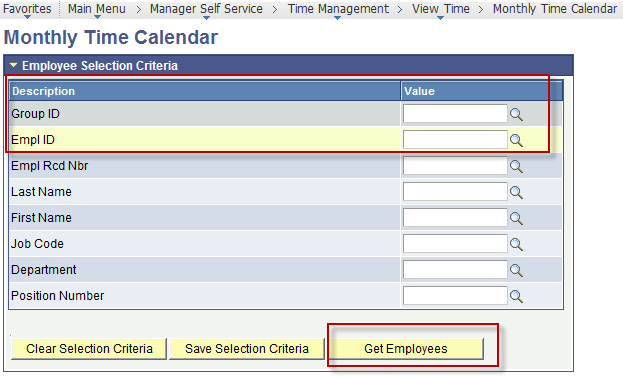
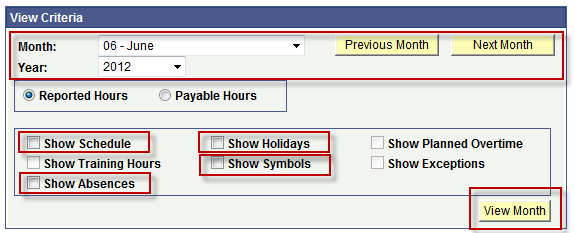
As a Timekeeper you have the ability to view schedules and absence takes using the Time Calendar. It is recommended that you use the "Monthly Time Calendar" and view by either Empl ID or Group ID. Group IDs with an "A" will include absence management eligible employees. Group IDs with and "X" will include student employees. This page uses dynamic group security so entering a Department ID as a search criteria will bring back both student and staff records and is not recommended. Also note that the sum of absences as well as hours scheduled is for calendar month rather than pay period and if selected will include 24-hour holiday periods.
There is currently no difference. The “Approve Reported Absences” page will be going away.
To view your personal absence information, use the Self Service link. To view absence information for your direct reports, use the Manager Self Service link.
“Current” to the system means most recently entered. The column really looks at the most recent absence entered and considers this entry as current. The entry could be 2 months into the future. If you are using this field to double check that a specific month’s time has been approved, you will need to click on the details located in the Report and View Absences page for any marked as submitted to verify it is the correct month.
The Supervisor/Manager role has been moved to Self Service. This can now be accessed through the portal in the same way that employee entry is accessed.
The Absence Management system requires input of schedules to determine absence reporting on specific days. The Absence Management system defines a schedule as the number of hours worked on specific days during the week. If your schedule is incorrect in the system then the absence duration will not be correct. View your schedule then submit a Notice of Work Schedule form if a change is needed.